
• Home
  • For You
  • Create
  • Pricing
  • More
Anyken
Pricing
Settings
Language
English
  • English
  • 日本語
  • 한국어
  • Español
  • العربية
  • Français
  • Deutsch
  • Русский
  • Nederlands
  • Italiano
ThemeAtelier
NSFW Video GeneratorNSFW Image GeneratorPrivacy policyTerms of serviceRefund policy
Anyken
  • Home
  • For You
  • Studio
  • My AI
  • AI Video
  • AI Image
  • Anime / Manga
  • AI Tools
  • Generate
  • Agent
  • Home
  • For You

Create & chat

  • Studio
  • AI Video
  • AI Image
  • Anime / Manga
  • Generate
  • Agent

Public discovery

  • My AI
  • AI Tools
Upgrade for more
Anyken
ContactPrivacyTermsRefund

Anyken | AI Video & Image Generator

support@anyken.com

Contact Anyken at support@anyken.com with the page URL and a description of your question. Model names and trademarks belong to their owners.

© 2026 Anyken. All rights reserved. ACKERMAN TECH SOLUTIONS LLC

    1. Home
    2. ›AI Tools
    3. ›AI Video Tools
    4. ›Text to Video

    Anyken AI

    Text to video AI from a written prompt

    Write a scene, an action, and a camera note. Anyken generates a short clip on the selected text-to-video model, then you refine the next prompt in the same workbench. You can start from a still with a written still, or restyle a frame with a photo restyle before animating.

    Anyken
    Veo 3
    Kling AI
    PixVerse
    Vidu AI
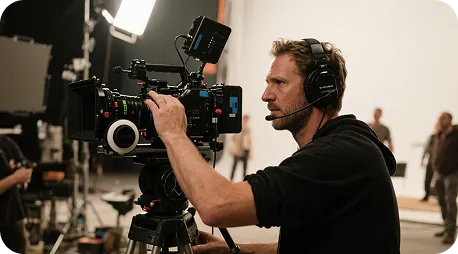
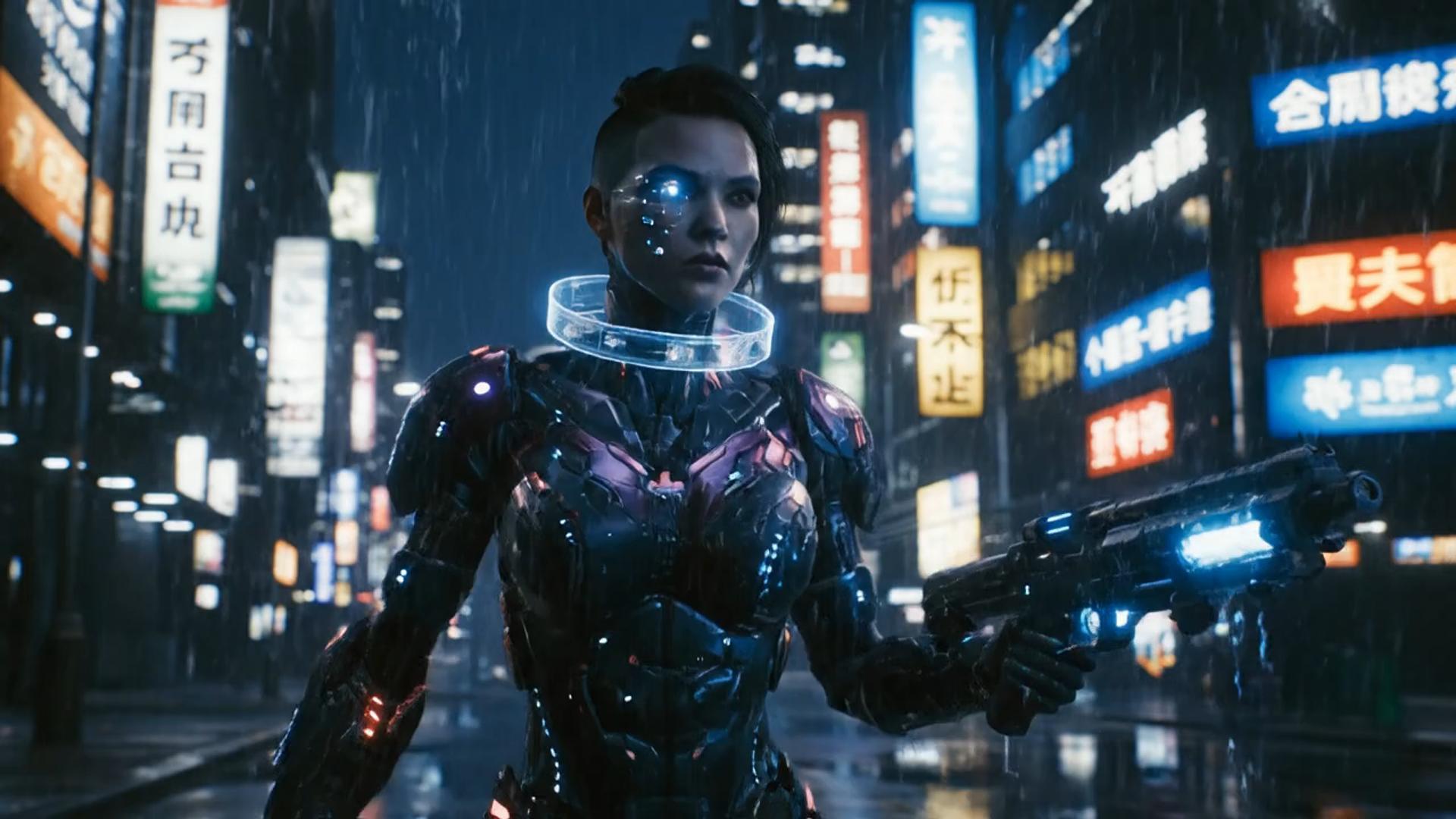
    Futuristic city scene

    Futuristic city scene

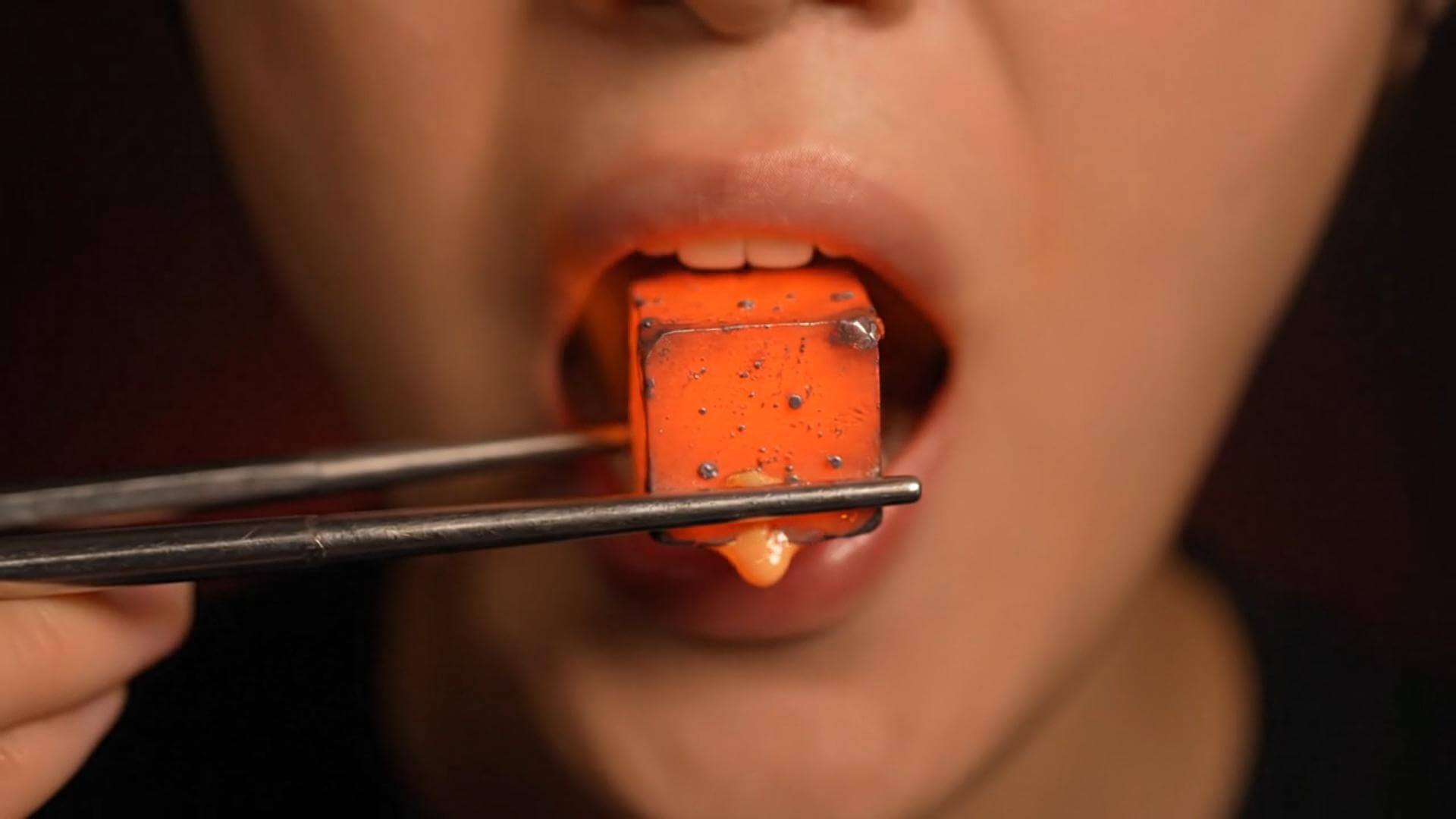
    Close-up and material details

    Close-up and material details

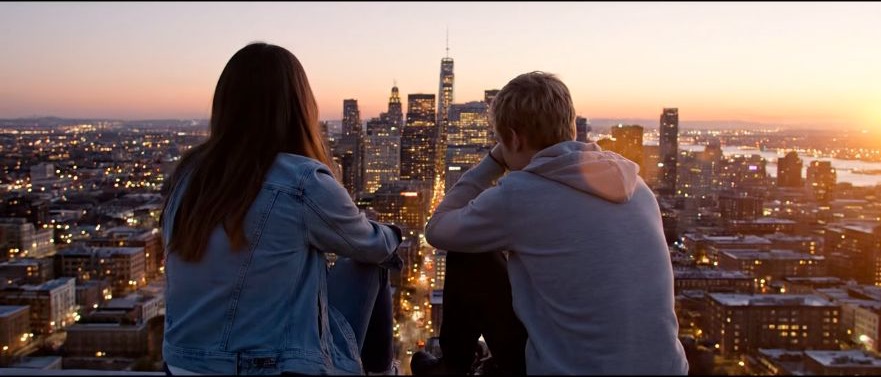
    Character story moment

    Character story moment

    From a written prompt to a motion draft

    A paragraph alone is not a finished video. Start with one subject and one action, generate a draft, then add camera, lighting, or atmosphere on the next run. Current model and service rules still apply. Use the short video maker to plan a single clip, or choose the Seedance 1.5 Pro workbench for that model.

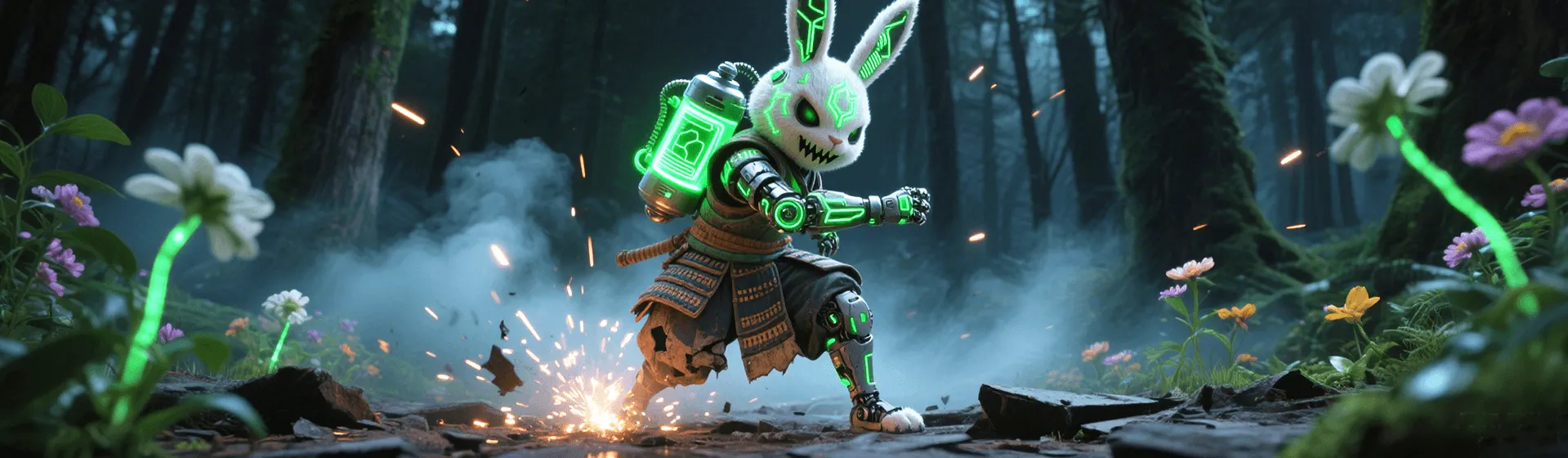
    Illustrative motion clip, not a verified text-to-video model output
    Template example clip
    ✦A cinematic city scene unfolds as the camera follows two friends at sunset...Warm evening light moves across the skyline in a gentle cinematic shot...↗

    Start with one sentence

    Generate first, then refine your idea with visuals

    You do not need a complete storyboard at the start. Anyken turns your prompt into a visual draft you can use to refine the subject, action, camera, and pacing.

    Shape creative visuals from text

    Break the path from text to visuals into clear, repeatable steps.

    ✦A cinematic character walks through a neon city in the rain...The camera follows the character as the lights begin to glow...↗
    01

    Write a scene, then generate a short motion draft

    Name a subject, one action, and a camera note. Anyken runs that prompt on the selected text-to-video model. It does not assemble a finished edit from a few keywords.

    place it on a Qwen still

    ✦A baby bird hides under its mother’s wing as rain falls softly...Warm light moves across the feathers in a gentle close-up shot...↗
    02

    Iterate duration and resolution with the credit cost in view

    Preview and iterate in one workflow instead of losing time switching between tools.

    draft this on Seedream
    ✦The viewer looks up, the character turns toward the camera...A hand-held camera gently pushes in as the scene changes...↗
    03

    Describe motion and style in the prompt, on the current t2v models

    Use prompts to control characters, scenes, lighting, and camera language, then refine the direction with the selected model's settings.

    try the look in GPT Image
    ✦Create a polished video from your idea, right in the browser...Review the result, refine the prompt, and generate another version...↗
    04

    Create more efficiently online

    No extra software is needed. Open the Anyken workbench to enter prompts, explore inspiration, and manage generation history.

    compare it on Nano Banana

    Who this text-to-video path is for

    From social clips to product demos, validate the visual direction with text before deciding how to produce it.

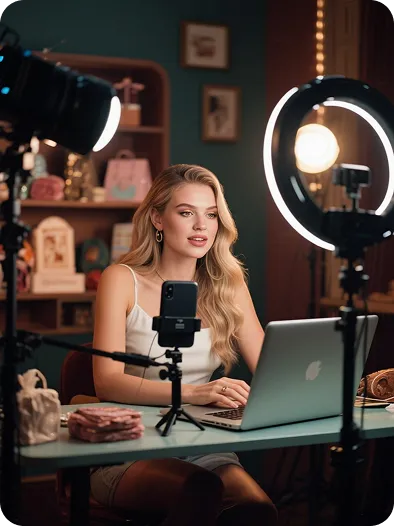
    Creators and influencers

    Creators and influencers

    Turn scripts, storyboards, or trending ideas into short videos ready for social testing.

    Brands and founders

    Brands and founders

    Explore product demonstrations and ad concepts with lower upfront production costs.

    Visual creators and directors

    Visual creators and directors

    Turn concepts, shots, and scenes into visual drafts before refining the final plan.

    Marketers and agencies

    Marketers and agencies

    Generate multiple visual directions quickly to compare rhythm, style, and composition for branded content.

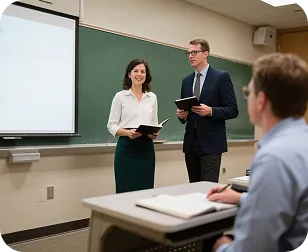
    Educators and instructors

    Educators and instructors

    Turn lesson concepts and written content into motion visuals that are easier to demonstrate.

    Creator notes

    A real creative workflow, from inspiration to the first draft

    Write down the idea first, then use the generated result to discover more precise camera language. These cards show common workflows and are not claims about specific users or results.

    He Yuxuan

    E-commerce advertising operator

    “I break a script into camera prompts, generate several versions quickly, and choose the one with the right product rhythm.”

    Gu Zhiyuan

    Short-form video creator

    “It is quick to move from a written idea to a first visual draft, and the inspiration cards help me find new camera directions.”

    Li Peishan

    YouTube creator

    “I can refine the camera language of the same story prompt repeatedly, which makes different visual directions easier to compare.”

    Xu Ruizhe

    Student creator

    “From polished commercial looks to playful short-film styles, I can test a direction quickly with one prompt.”

    He Zhiyu

    Founder

    “I generate a promotional draft first, then adjust the visuals around the product's priorities. It is faster than starting with an empty timeline.”

    Wu Zhiqing

    Instructor

    “Turning an abstract lesson concept into a scene prompt makes visual ideas much easier to demonstrate in class.”

    Frequently asked questions

    Common questions about the text-to-video workflow.

    What is text-to-video generation?+−

    Text-to-video turns your scene, character, action, and camera direction into a previewable clip. More detail gives you a steadier visual direction, and you can start from an inspiration card before refining it in the workbench.

    How long does it take to generate a video?+−

    Generation time varies with the model, resolution, video length, and current queue. After submitting, check the task status in History, then preview or download the result when it is ready.

    Why does the generated video differ from my description?+−

    The model interprets the subject, action, camera, and style together. Try structuring a prompt as subject + action + environment + camera + lighting, and avoid conflicting requirements in one sentence.

    Can I revise a result I do not like?+−

    Yes. Keep the original prompt, adjust the action or camera first, and generate again. If the style is the issue, replace only the style description so you can compare versions.

    Can I try Anyken text-to-video for free?+−

    The workbench is available for a direct trial. Available models, credits, and output settings depend on your account and the current workbench; the credit cost is shown before generation.

    Can generated videos be used in commercial projects?+−

    Check the selected model's terms, rights to your input materials, and your account plan before using a result commercially. Anyken does not make commercial-licensing promises for third-party models.

    Anyken text-to-video tutorial

    Start creating in three steps

    Text-to-video tutorial

    Anyken text-to-video and timeline editing

    Choose by starting material and task: generate a new clip from text, or arrange existing media in an editing project. A timeline editor's controls, export options, and pricing depend on the product you choose.

    Anyken text-to-video and timeline editing
    Workflow stepAnyken text-to-videoTimeline editing
    Starting pointWrite a scene prompt and choose an available text-to-video modelImport source clips, stills, or audio and arrange them on a timeline
    Visual directionDescribe subjects, scenes, and styles for the selected model to interpretWork with source material and the visual tools offered by the selected editor
    Creative controlsUse subject, action, and camera notes to guide generationUse the selected editor's timeline and clip controls to shape the sequence
    Effects and transitionsDescribe the desired motion or look in the generation promptAvailable effects and transitions depend on the editor
    Core workflowGenerate a new clip from a written scene descriptionAssemble and edit source media into a sequence
    RevisionsChange the prompt or supported settings, then generate another versionRevise the editing project and export another version
    Processing timeGeneration time varies with the model, settings, and queueExport time varies with the project, editor, and processing setup
    OutputClip duration and resolution follow the selected model's optionsExport options depend on the editor and source media
    Typical taskExplore a motion concept from a written briefSequence, cut, or combine media for an edit
    ReviewPreview completed clips and download them from HistoryReview the editing project or its exported file
    Pricing modelThe workbench displays the credit cost before generationLicensing and subscription terms vary by editor

    More video creation tools

    Choose the Anyken workflow that fits your source material. Generate a still with a written still, or a reference edit to restyle a frame before animating.

    Image to video
    Image to video→
    Anyken AI text-to-video
    Anyken AI

    Turn text into vivid moving visuals

    Start with one shot and use Anyken to explore your next video idea.

    Buy now

    Explore More AI Image Tools

    • Dots video effects
    • GPT Image 2 Generator
    • GPT Image 2.5 Version Guide
    • Image 2.5 Generator
    • image2.5 Name Guide
    • Seedance 3.0 status tracker

    Related workflows

    • Image to Image
    • Image to Video
    • Video Editor
    • Video Extend
    • Text to Video

    Related models

    • Hailuo 02
    • Photo to Video
    • Text to Video

    Related tools

    • Motion Control
    • AI Dance Generator

    Blog & Guides

    • AI Video Generator Guide: Text to Video and Image to Video on Anyken
    • Getting Started with AI Video Generation on Anyken
    Next stepBack to AI Tools

    Model & settings

    Aspect Ratio

    Duration

    5s
    2s30s

    Resolution

    Repeat

    1
    2STARTER5LITE8PRO10MAXCurrent
    Advanced settings

    On: the video provider rewrites your prompt before it generates (prompt extend). Off: it uses the prompt in the box as you wrote it. The text in the box stays the same.

    This number is sent with the video. When the model, prompt, and references stay the same, the same seed can come close to the last result. The provider may still differ. Leave it unlocked and each run gets a new seed, so the next video is not identical.

    Video mode

    Video mode

    Upload reference

    0/1
    Hints

    Prompt

    Prompt
    0/20000
    Credit cost

    1 videos · 24 credits

    Samples are examples. Results follow the prompt and model and will not match the preview. For a closer match, use Image to Image for a still or Video to Video for a clip.

    1 / 2