
• Home
  • For You
  • Create
  • Pricing
  • More
Anyken
Pricing
Settings
Language
ThemeAtelier
NSFW Video GeneratorNSFW Image GeneratorPrivacy policyTerms of serviceRefund policy
Anyken
  • Home
  • For You
  • Studio
  • My AI
  • AI Video
  • AI Image
  • Anime / Manga
  • AI Tools
  • Generate
  • Agent
  • Home
  • For You

Create & chat

  • Studio
  • AI Video
  • AI Image
  • Anime / Manga
  • Generate
  • Agent

Public discovery

  • My AI
  • AI Tools
Upgrade for more
    1. Home
    2. ›More specialized creative tools
    3. ›AI image generators
    4. ›ai photo generator
    Anyken
    ContactPrivacyTermsRefund

    Anyken | AI Video & Image Generator

    support@anyken.com

    Contact Anyken at support@anyken.com with the page URL and a description of your question. Model names and trademarks belong to their owners.

    © 2026 Anyken. All rights reserved. ACKERMAN TECH SOLUTIONS LLC

    Anyken AI

    ai photo generator on Anyken

    Use this ai photo generator guide to plan your Anyken creation. Start with the input described on this page, review the examples and choose a model that supports the task. The workspace shows available controls and the credit estimate before you create.

    Open the text-to-image workbench and start your first generation.
    Nano Banana ProNano Banana ProFlux 2Flux 2Qwen Image 2Qwen Image 2

    ai photo generator: Model and input choices

    For ai photo generator on Anyken, use this section to review model and input choices. Match these details to your input and the controls in the selected workflow.

    01

    ai photo generator: Model and Input

    Seedream 5 Pro is the selected image model for this page, and it is designed to interpret detailed written descriptions of a subject, scene, lighting, and composition. When you open the text-to-image workbench, confirm that this model is active before you submit a task. An ai photo generator relies on the prompt you write, so pairing the right model with a clear brief is the first step toward a usable still. Submitting a generation task requires an authenticated account, and completed tasks appear in generation history for preview and download.
    02

    Lock the Aspect Ratio for Your Destination

    The text-to-image workbench includes aspect-ratio controls that let you match the frame to where the still will live, whether that is a vertical story, a wide banner, or a square social post. Setting the ratio early keeps the composition intact and avoids awkward crops later. An ai photo generator can fill any shape you choose, but the framing decisions you make now determine how the subject sits in the final image. Inspect framing, subject detail, and visual consistency in each result before refining the input.

    03

    Confirm Resolution Settings Before You Generate

    Use resolution only when the selected model shows it, and always check the current workbench controls before you commit a run. The task cost is displayed in the workbench before submission, so you can decide whether the resolution setting fits your credit budget for that generation. An ai photo generator processes your prompt at the chosen resolution, and changing this setting between runs helps you balance detail against cost. Generation uses account credits, and reading the cost line before every submission keeps your session predictable.

    ai photo generator: Workflow features

    For ai photo generator on Anyken, use this section to review workflow features. Match these details to your input and the controls in the selected workflow.

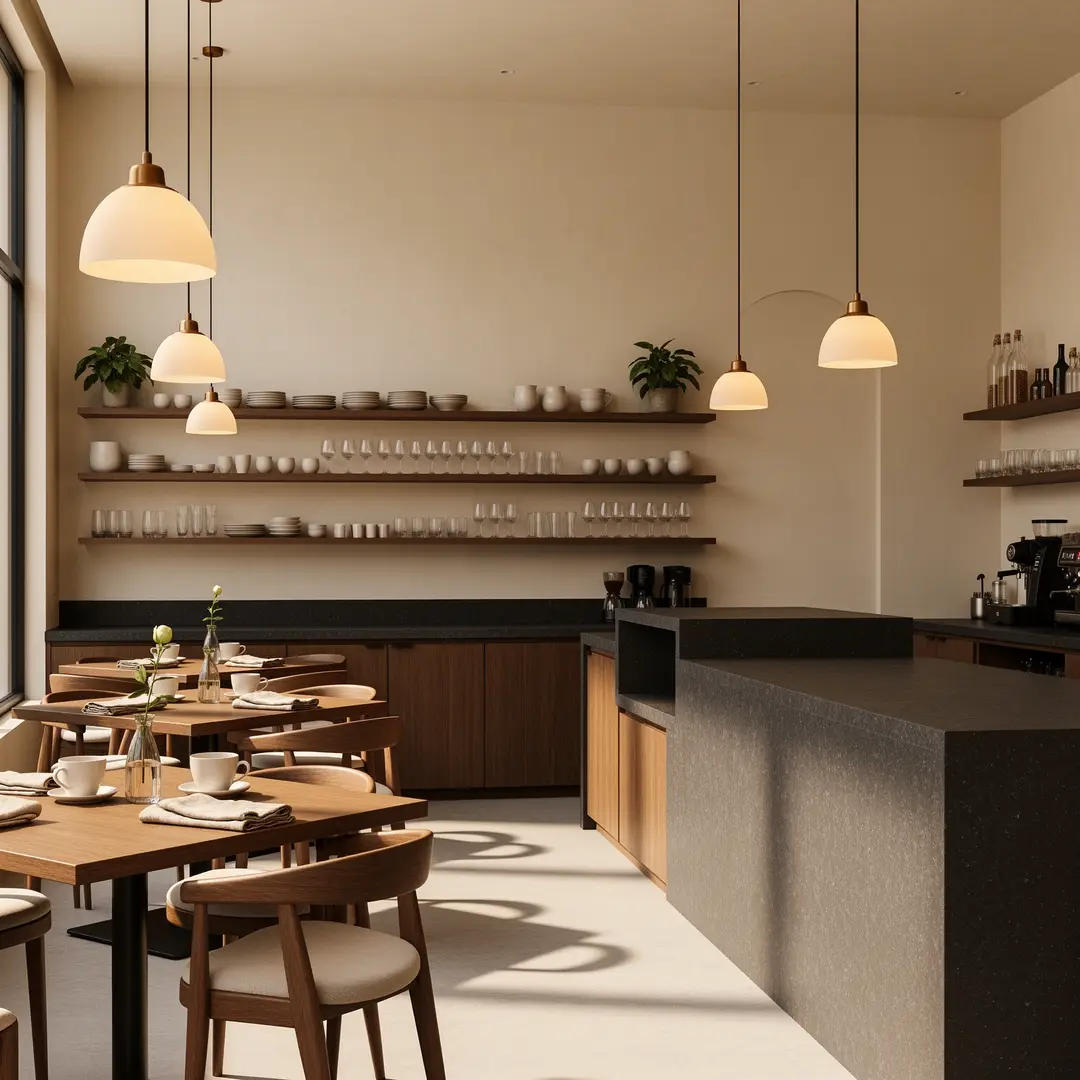
    Warm boutique cafe interior with wood tables and large windows
    Illustrative reference: a cafe interior written as a scene, not a verified text-to-image output.

    01

    Translate a Verbal Idea into a Visual Brief

    The text-to-image workflow starts from a written description of the subject, scene, lighting, and composition. For a warm boutique cafe interior with wood tables and large windows, you would name the materials, the light direction, and the depth of the space. An ai photo generator does not read your mind; it reads your prompt, so every adjective and spatial cue matters. Write useful original explanations of input choices, framing, and result review, and treat the first generation as a draft you will sharpen.

    Sunlit boutique cafe interior, walnut tables, bentwood chairs, brass pendant lights, large street-facing windows, a single espresso cup on the nearest table, wide establishing shot, warm late-morning light, photorealistic architectural still, no people, no logos.
    place it on a Qwen still

    ai photo generator: Project ideas

    For ai photo generator on Anyken, use this section to review project ideas. Match these details to your input and the controls in the selected workflow.

    Text-to-image creation scenarios

    ai photo generator: Visual examples

    For ai photo generator on Anyken, use this section to review visual examples. Match these details to your input and the controls in the selected workflow.

    Illustrative references. Not verified Anyken input/output pairs.

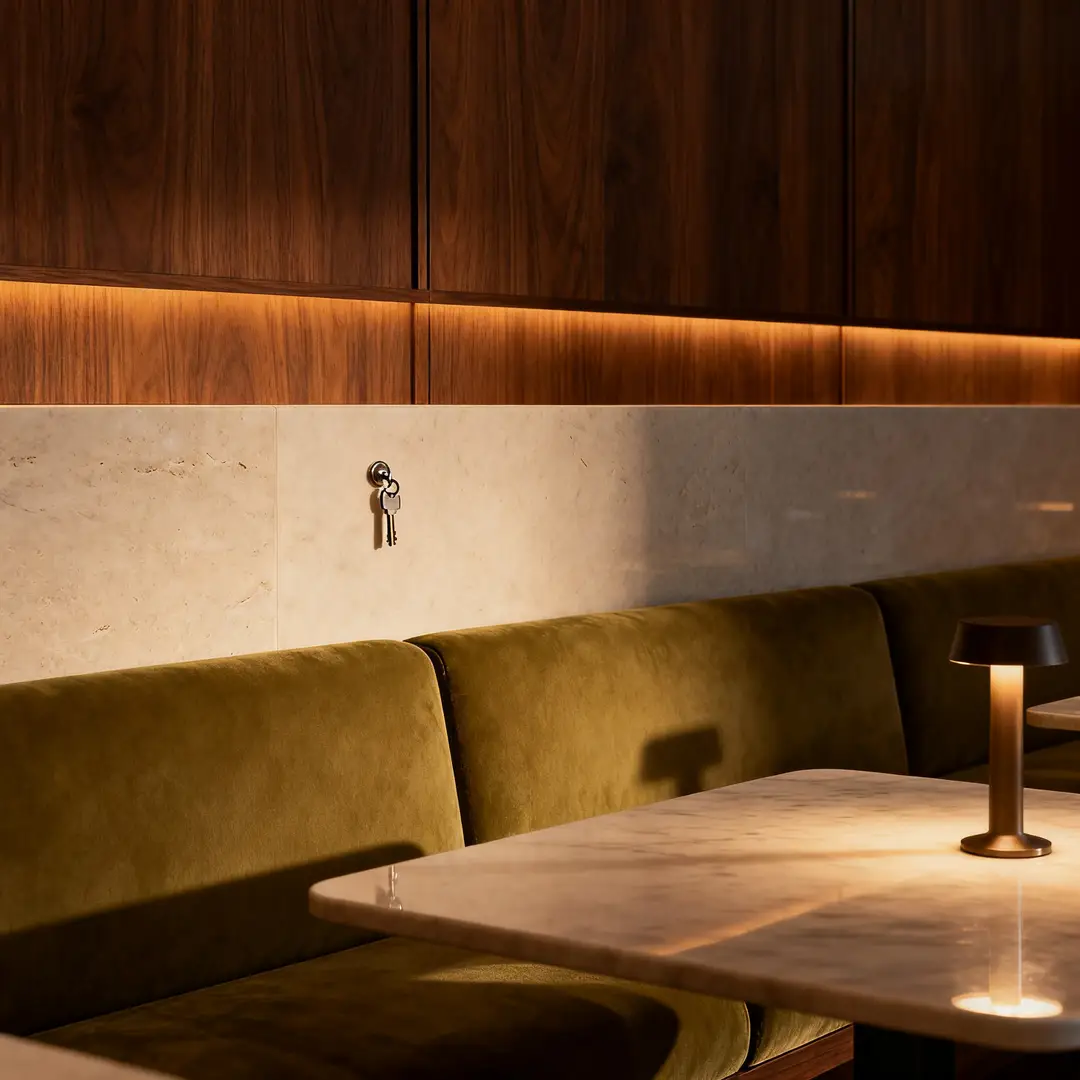
    Boutique hotel lounge with warm lamps, sofas, and layered textures

    Hospitality Key Visual

    A boutique hotel lounge with warm lamps, sofas, and layered textures is a hospitality still that communicates atmosphere through material choices and light temperature. An ai photo generator can interpret a prompt that names velvet upholstery, brass fixtures, and soft overhead lighting to produce a welcoming interior concept. Reference images and clips on this page are existing site examples, not proof of outputs from the selected model, but they show how a written brief can target a specific mood.

    Illustrative interior still for a written hospitality brief.

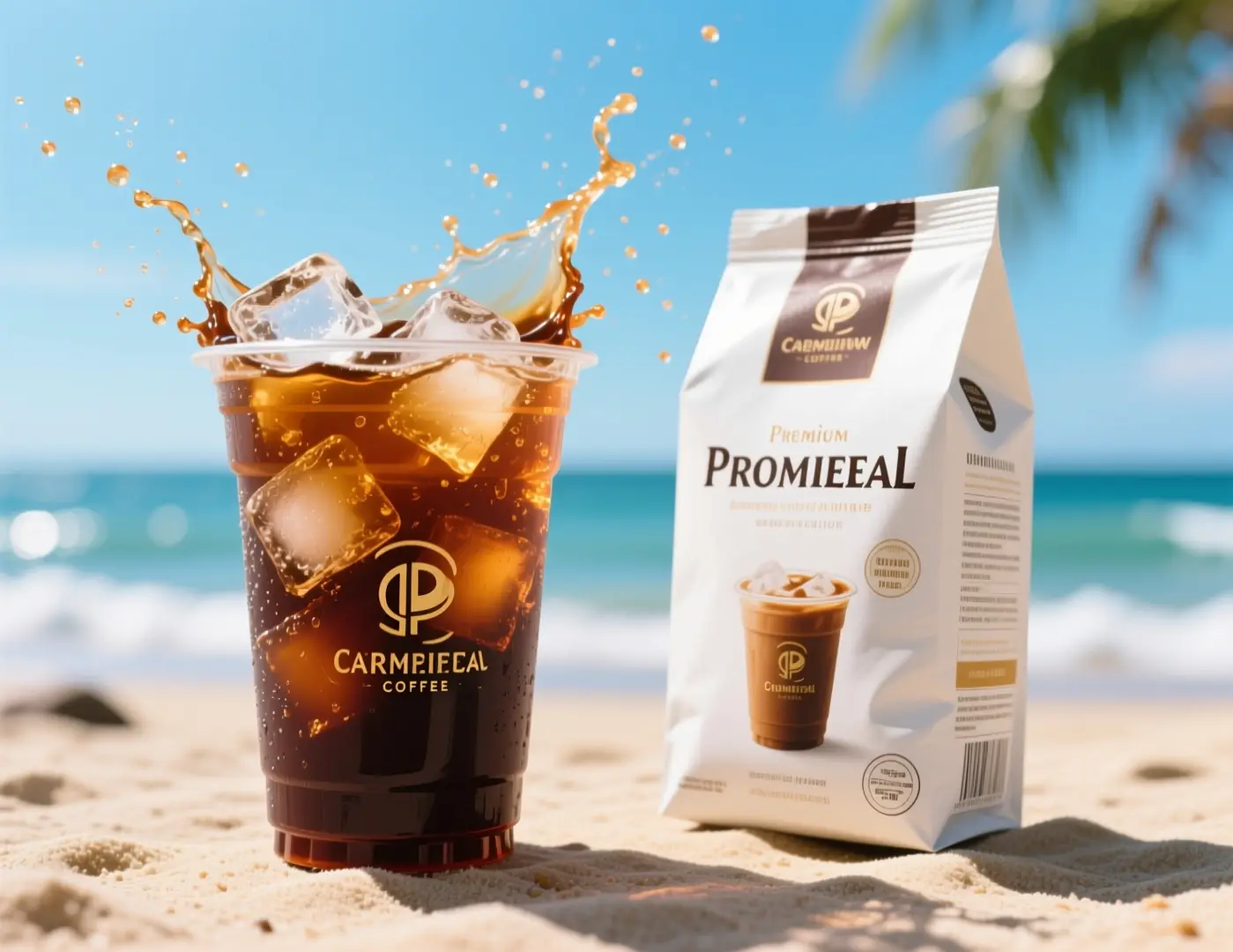
    Iced coffee in a tall glass with condensation on a cafe table

    Beverage Social Frame

    Iced coffee in a tall glass with condensation on a cafe table is a product composition that relies on surface detail and a sense of place. An ai photo generator can render the glass clarity, the liquid color, and the background blur when the prompt includes those physical descriptors. Inspect framing, subject detail, and visual consistency in each result before refining the input, and keep the destination aspect ratio in mind as you write.

    ai photo generator: Related workflows

    For ai photo generator on Anyken, use this section to review related workflows. Match these details to your input and the controls in the selected workflow.

    Clean skincare bottle hero still on a pale seamless background

    Rewrite the Still from the File Instead of from Memory

    A clean skincare bottle hero still on a pale seamless background can be re-described from the generated file rather than from your original prompt. An ai photo generator benefits from a fresh written brief that reacts to what the model actually produced, not what you expected. Write useful original explanations of input choices, framing, and result review, and use the existing still as a visual reference while you rewrite the prompt for the next run.

    edit from a reference photo→
    Night sports campaign still of an adult athlete in cool stadium light

    Turn the Approved Still into a Motion Test

    A night sports campaign still of an adult athlete in cool stadium light can become the foundation for a motion test when you move to a related tool in the workspace. An ai photo generator produces the static concept, and the connected motion tool uses that still as a starting frame. Reference images and clips on this page are existing site examples, not proof of outputs from the selected model, but they show how a photographic still can anchor a broader campaign asset.

    turn the still into motion

    ai photo generator: Prompt and reference tips

    For ai photo generator on Anyken, use this section to review prompt and reference tips. Match these details to your input and the controls in the selected workflow.

    01

    Lead with Subject, Setting, and Finish

    Start every prompt by naming the main subject, the environment, and the material finish you want. An ai photo generator processes the prompt in order, so placing the most important visual facts at the beginning gives them more weight. For a photographic still, that means stating the person or object, the backdrop, and the surface quality before you add mood words. Write useful original explanations of input choices, framing, and result review, and keep the opening clause tight.

    02

    Keep a Series Related by Repeating the Constants

    When you need multiple stills that feel like part of the same set, repeat the lighting, backdrop, and color palette clauses in every prompt. An ai photo generator will produce more consistent results when the structural language stays the same across runs. Change only the subject or the prop placement, and leave the environmental description locked. Inspect framing, subject detail, and visual consistency in each result before refining the input.

    03

    Read the Credit Line Before a Retry

    Generation uses account credits, and the task cost is shown in the workbench before submission. Before you hit retry on a near-miss still, check whether a small prompt edit would cost less than a full rerun at a higher resolution. An ai photo generator rewards precise adjustments, and reading the cost line keeps your session within the budget you set. Submitting a generation task requires an authenticated account, and completed tasks appear in generation history for preview and download.
    ai photo generator: Questions and answers

    For ai photo generator on Anyken, use this section to review questions and answers. Match these details to your input and the controls in the selected workflow.

    What Belongs in the Written Brief

    The text-to-image workflow starts from a written description of the subject, scene, lighting, and composition. An ai photo generator interprets the prompt you provide, so a useful brief names the main subject, the setting, the light direction, and the material finishes. Write useful original explanations of input choices, framing, and result review, and avoid vague adjectives that the model cannot translate into a visual decision. Reference images and clips on this page are existing site examples, not proof of outputs from the selected model, but they show the level of detail a prompt can include.

    How detailed should the first prompt be for an ai photo generator?

    +−

    Name the subject, setting, light source, and at least one material finish. A prompt that says only "portrait" leaves too many decisions unmade, while a prompt that specifies hair color, backdrop texture, and key light direction gives the model a clear target.

    Can I generate if I do not have a photo to upload?

    +−

    ai photo generator: Creation steps

    For ai photo generator on Anyken, use this section to review creation steps. Match these details to your input and the controls in the selected workflow.

    Step 1: Type the Still as Production Notes

    Open the text-to-image workbench and write your prompt as if you were leaving production notes for a photographer. Name the subject, the setting, the key light, and the finish. An ai photo generator works best when the prompt reads like a shot list, not a poem. Write useful original explanations of input choices, framing, and result review, and keep the language concrete. The text-to-image workflow starts from a written description of the subject, scene, lighting, and composition, so every word should earn its place.

    Step 2: Choose Model, Ratio, and Resolution, Then Read the Cost Line

    Confirm that Seedream 5 Pro is selected, set the aspect ratio to match your destination, and adjust resolution only when the model shows the option. An ai photo generator displays the task cost in the workbench before submission, so read that number before you generate. Generation uses account credits, and submitting a task requires an authenticated account. Completed tasks appear in generation history for preview and download once the run finishes.

    Step 3: Compare Drafts and Rewrite One Clause

    Run two or three generations from the same prompt, then open the results side by side. An ai photo generator can produce variations in shadow, color temperature, and detail placement, and comparing them helps you identify which clause to adjust. Inspect framing, subject detail, and visual consistency in each result before refining the input, and rewrite only the part of the prompt that needs correction. Reference images and clips on this page are existing site examples, not proof of outputs from the selected model.

    ai photo generator: Next creation

    For ai photo generator on Anyken, use this section to review next creation. Match these details to your input and the controls in the selected workflow.

    Lock Subject, Setting, and Finish in Three Sentences

    Write a reusable prompt template that names the subject, the environment, and the material finish in three separate sentences. An ai photo generator can return to that template across multiple sessions, which saves you from rebuilding the structural language every time. Write useful original explanations of input choices, framing, and result review, and store the template somewhere you can paste it back into the workbench. The text-to-image workflow starts from a written description, so a saved template is a saved starting point.

    Set a Credit Budget for Exploration Versus Delivery

    Decide how many credits you will spend on rough concept drafts and how many you will reserve for the final high-resolution stills. An ai photo generator uses account credits for each submission, and the task cost is shown in the workbench before submission, so you can plan the split before you start. Generation uses account credits, and reading the cost line on each run keeps your exploration phase from eating into the delivery budget.

    Define the Quality Bar You Will Actually Accept

    Before you generate, write down the three things the still must get right for you to stop iterating. An ai photo generator can produce endless variations, but without a clear stop condition you will spend credits chasing perfection. Inspect framing, subject detail, and visual consistency in each result, and when a still meets your three criteria, download it and move on. Completed tasks appear in generation history for preview and download, so your accepted stills are always available.

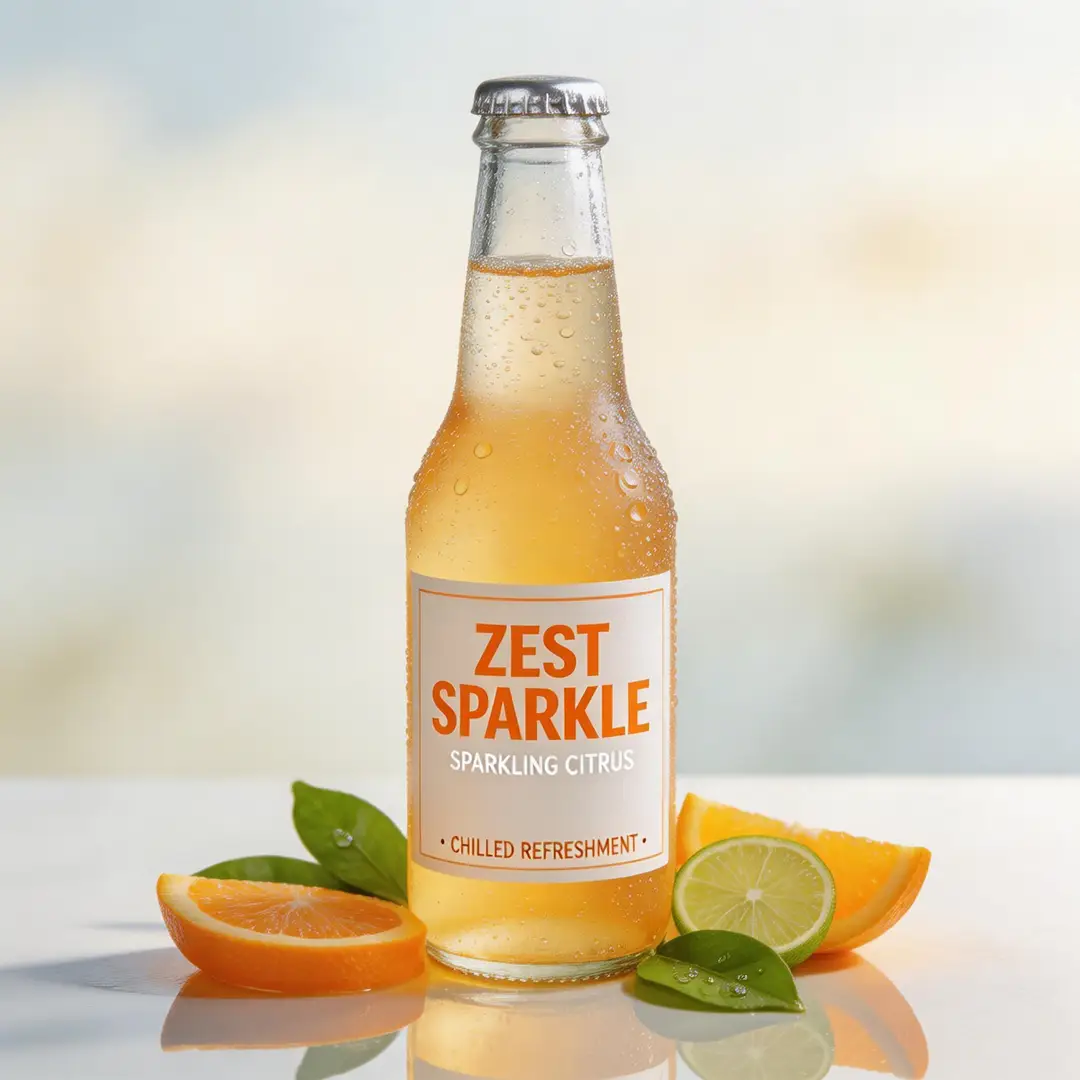
    High-detail beverage campaign still used as a closing visual

    Model & settings

    Aspect Ratio

    Resolution

    Repeat

    1
    2STARTER5LITE8PRO10MAXCurrent

    12 credits

    Hints

    Prompt

    Describe the image you want to generate
    0/5000
    Credit cost

    1 images · 12 credits

    Samples are examples. Results follow the prompt and model and will not match the preview. For a closer match, use Image to Image for a still or Video to Video for a clip.

    1 / 2
    Seedream 5 Pro
    Seedream 5 Pro
    GPT Image 2.0GPT Image 2.0
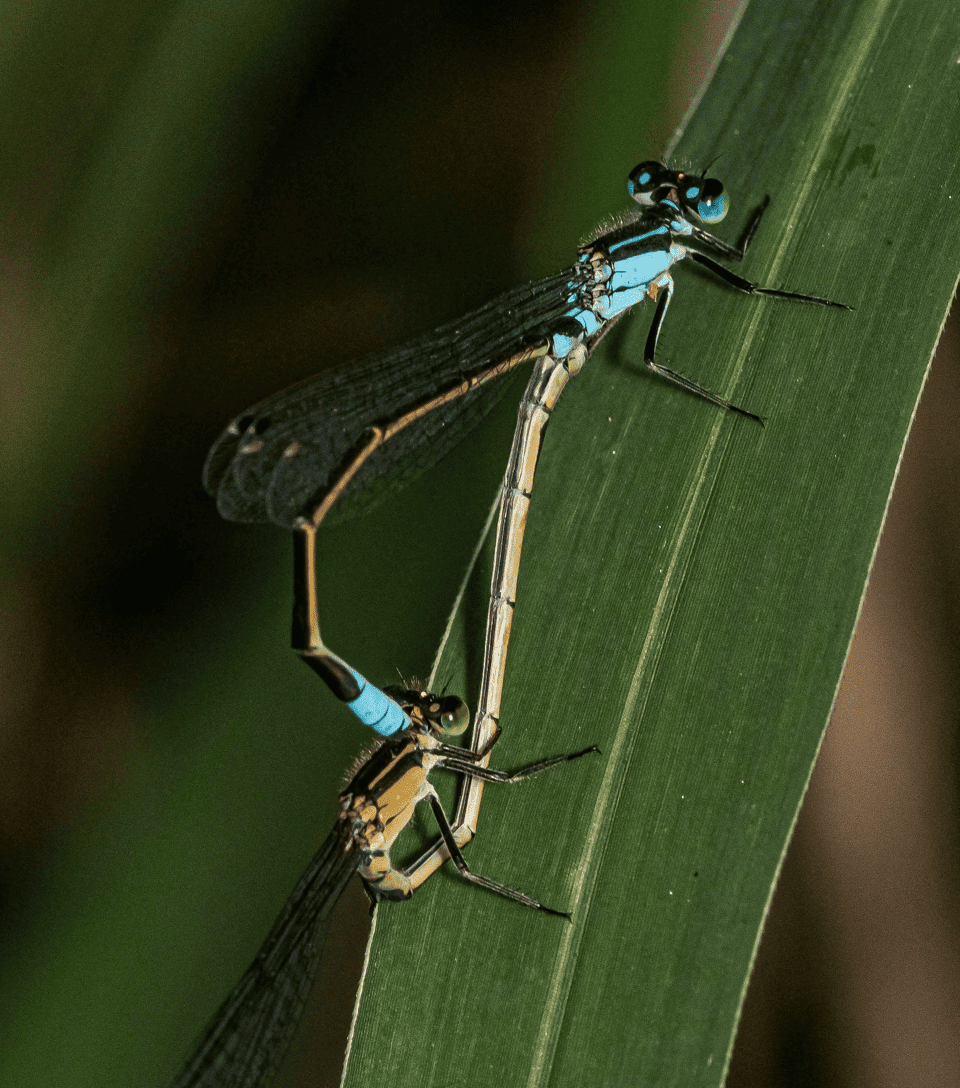
    Blue damselflies resting on a deep green leaf in a close nature study
    Illustrated nature studyA high-contrast reference for a stylized prompt, with a clear subject and an unusual material palette.
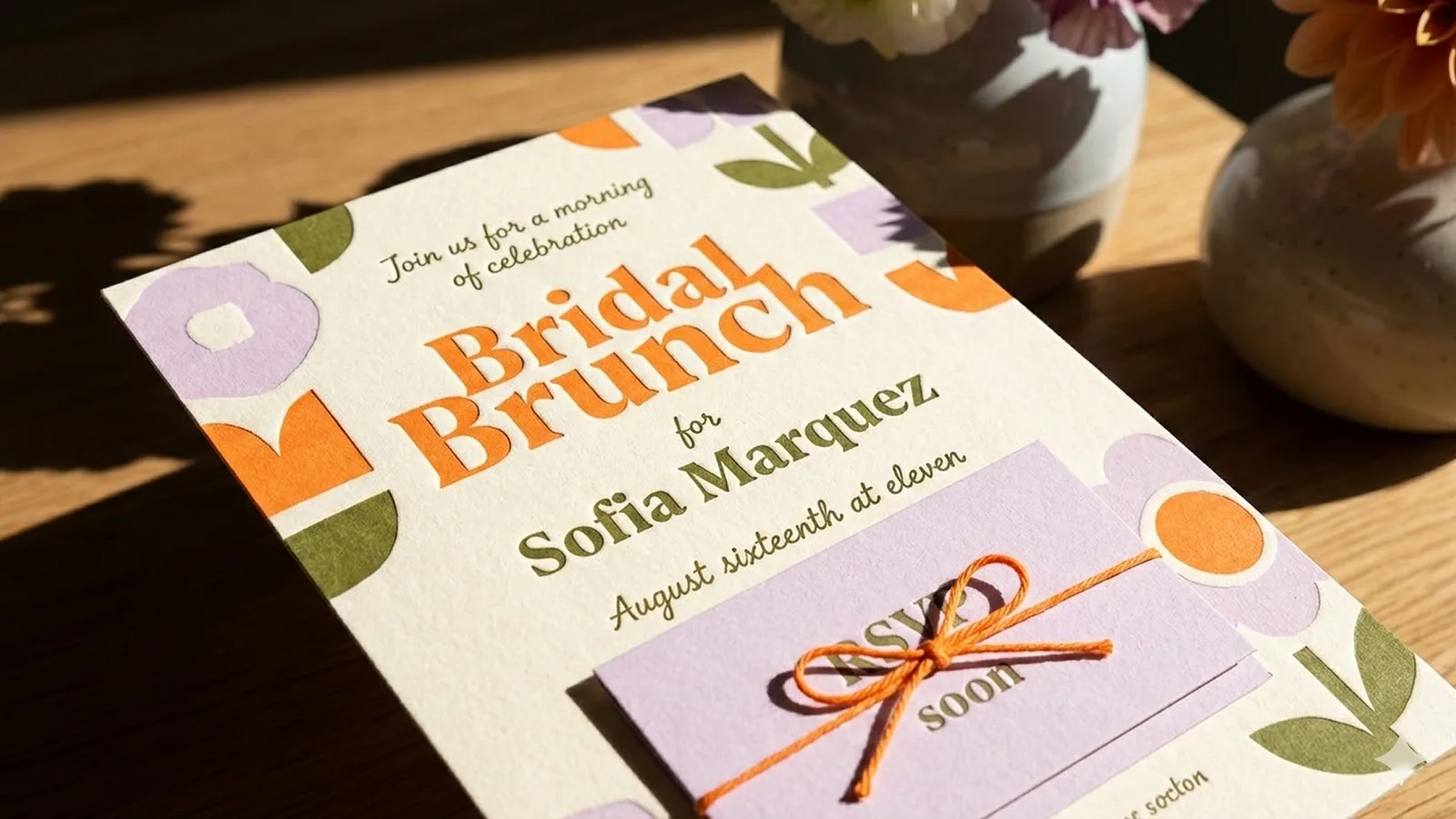
    Minimal cream and burgundy bridal invitation layout with refined typography
    Editorial invitation systemUse a compact graphic reference when the brief needs hierarchy, type zones, and a premium paper-like finish.
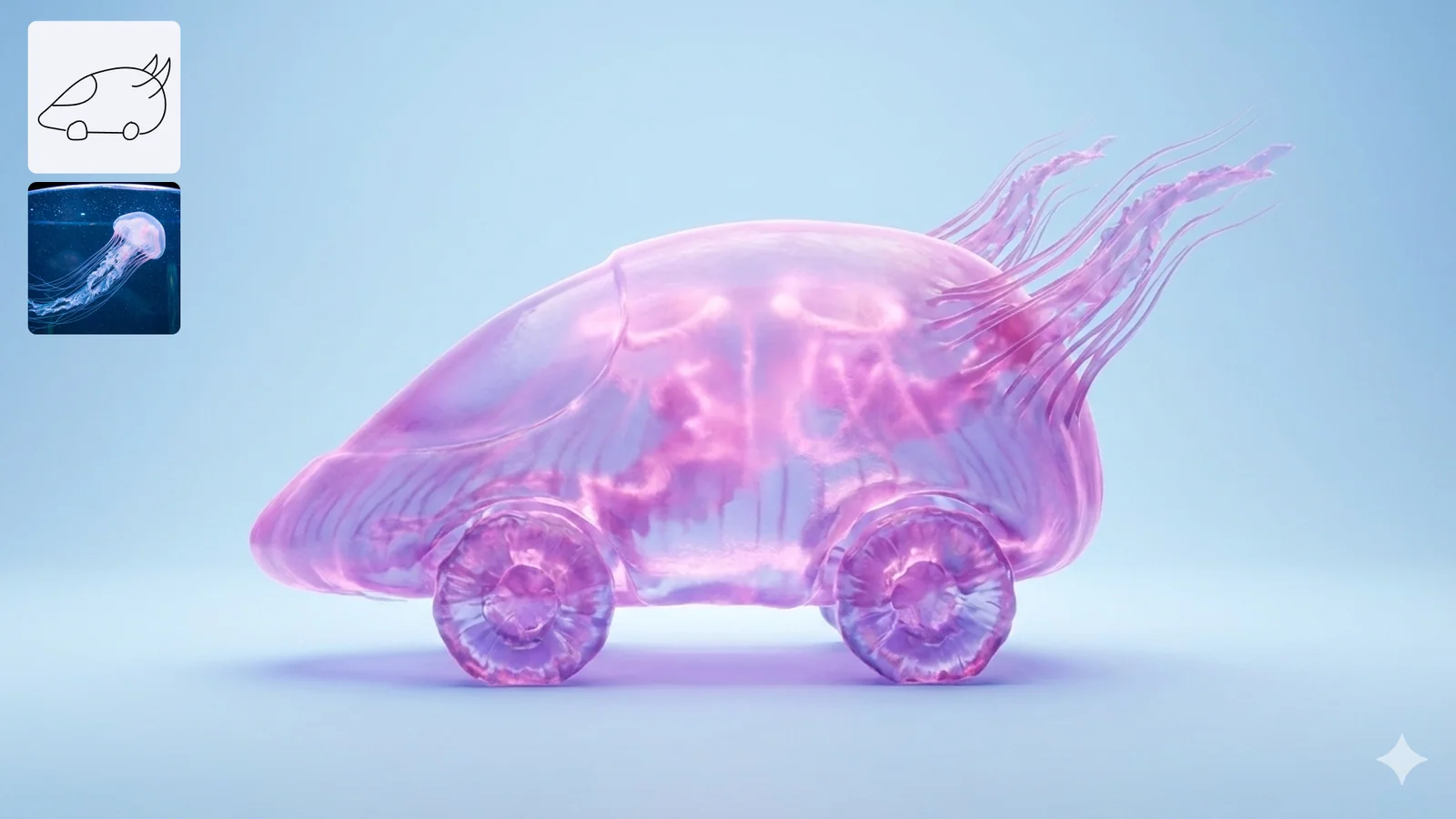
    Surreal vehicle concept with translucent jellyfish-inspired material in a dark studio
    Material-led concept frameA surreal product direction shows how a written brief can test material, lighting, and silhouette before a shoot.
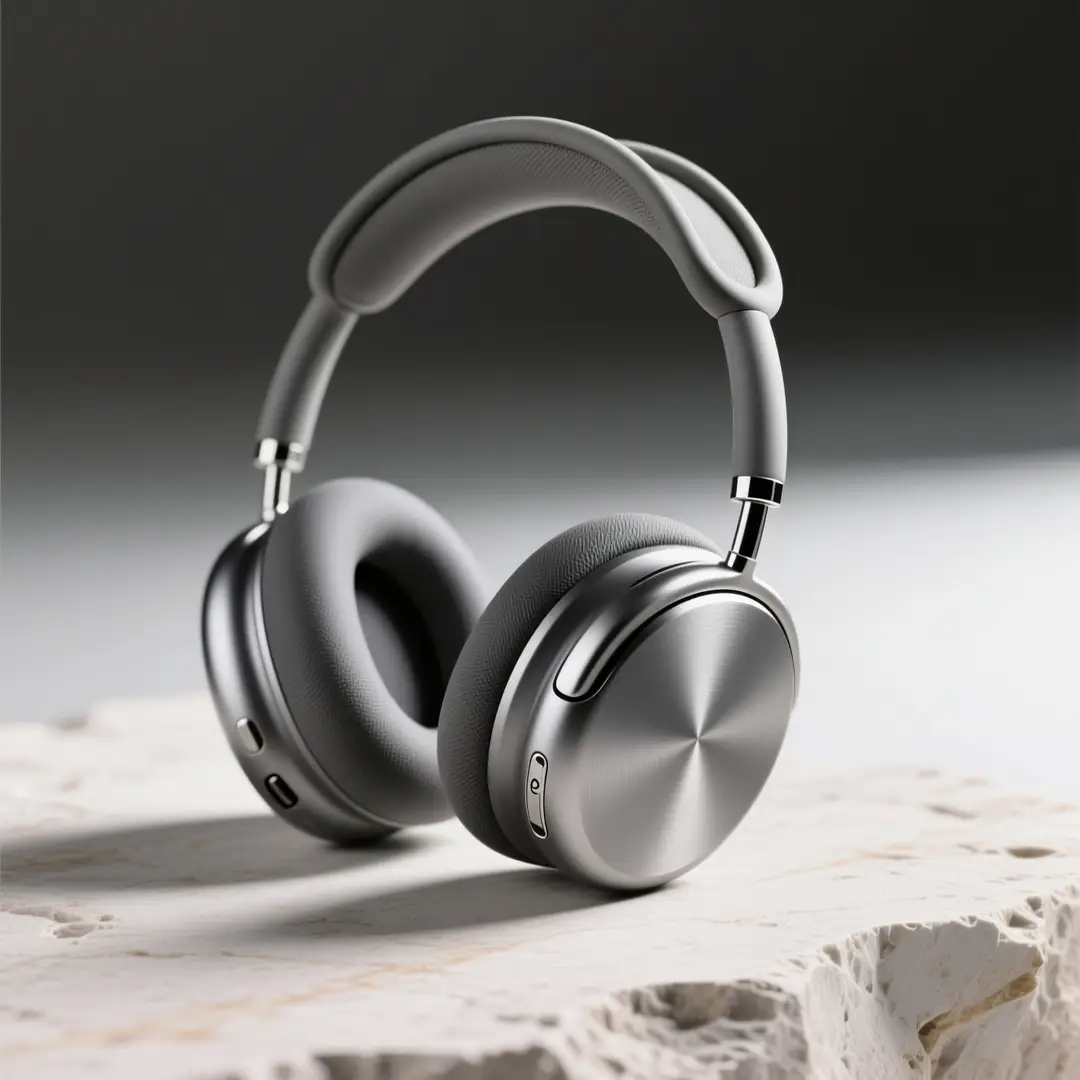
    Silver over-ear headphones on pale stone against a dark studio background
    Illustrative reference for a written product still. Prompt example only.

    02

    Lock Composition, Light, and Finish Before You Generate

    Silver over-ear headphones on pale stone against a dark studio background is a still that works because the materials, backdrop, and lighting were all specified in the prompt. An ai photo generator can hold those constants across multiple runs when you repeat the same structural clauses. Locking the composition early means you spend your credits on refining the finish, not on fixing a drifting background. Use only supported product facts for capabilities, and build your prompt around the elements you cannot fix after the fact.

    Studio product still of silver over-ear headphones on pale limestone, dark seamless backdrop, three-quarter view, crisp rim light on the headband, soft fill on the ear cups, catalog photography, no extra props, no readable brand marks.
    draft this on Seedream
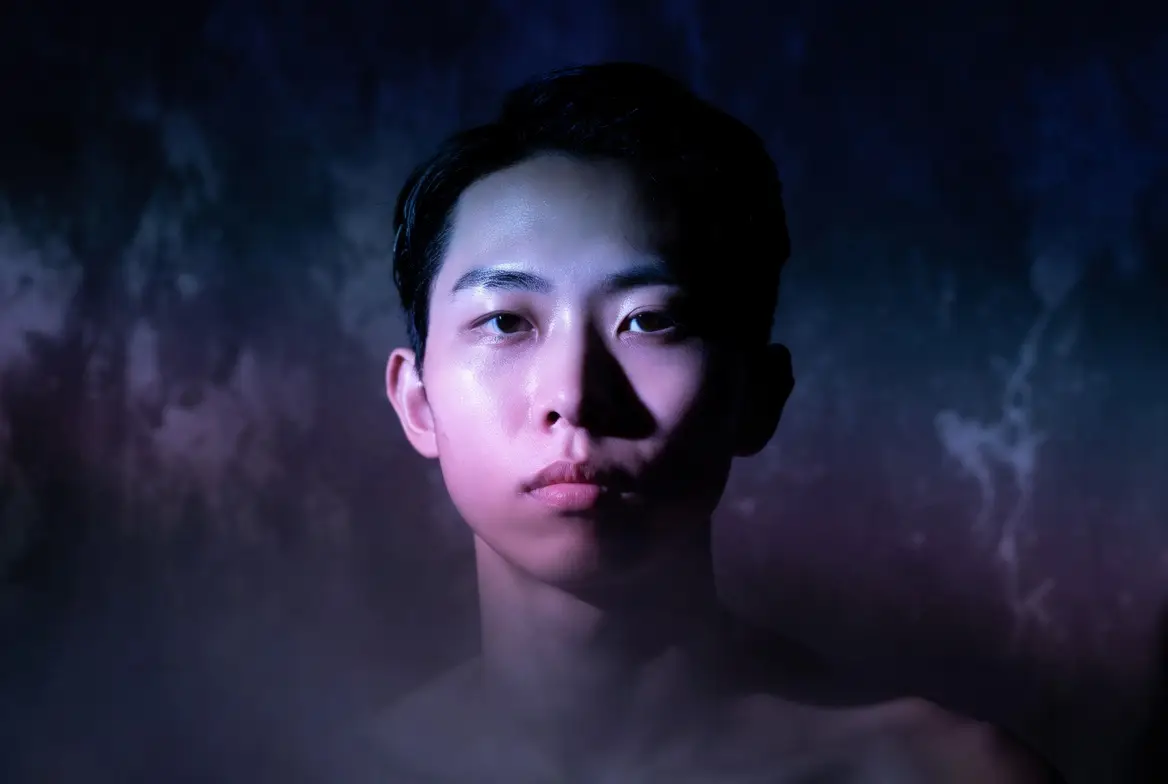
    Moody adult portrait lit with purple and blue studio lighting
    Illustrative portrait study for a written lighting brief, not a measured result.

    03

    Generate Concept Drafts You Can Compare Side by Side

    A moody adult portrait lit with purple and blue studio lighting benefits from seeing two or three interpretations of the same prompt. An ai photo generator can produce variations that differ in shadow placement, catchlight, or color temperature, and comparing them helps you decide which direction to push. Completed tasks appear in generation history for preview and download, so you can keep the drafts you want and discard the rest. Inspect framing, subject detail, and visual consistency in each result before refining the input.

    Adult portrait, three-quarter crop, purple key light from camera left and cool blue fill from the right, glossy skin, dark studio void, editorial album-cover finish, sharp eyes, no jewelry logos, no text.
    try the look in GPT Image
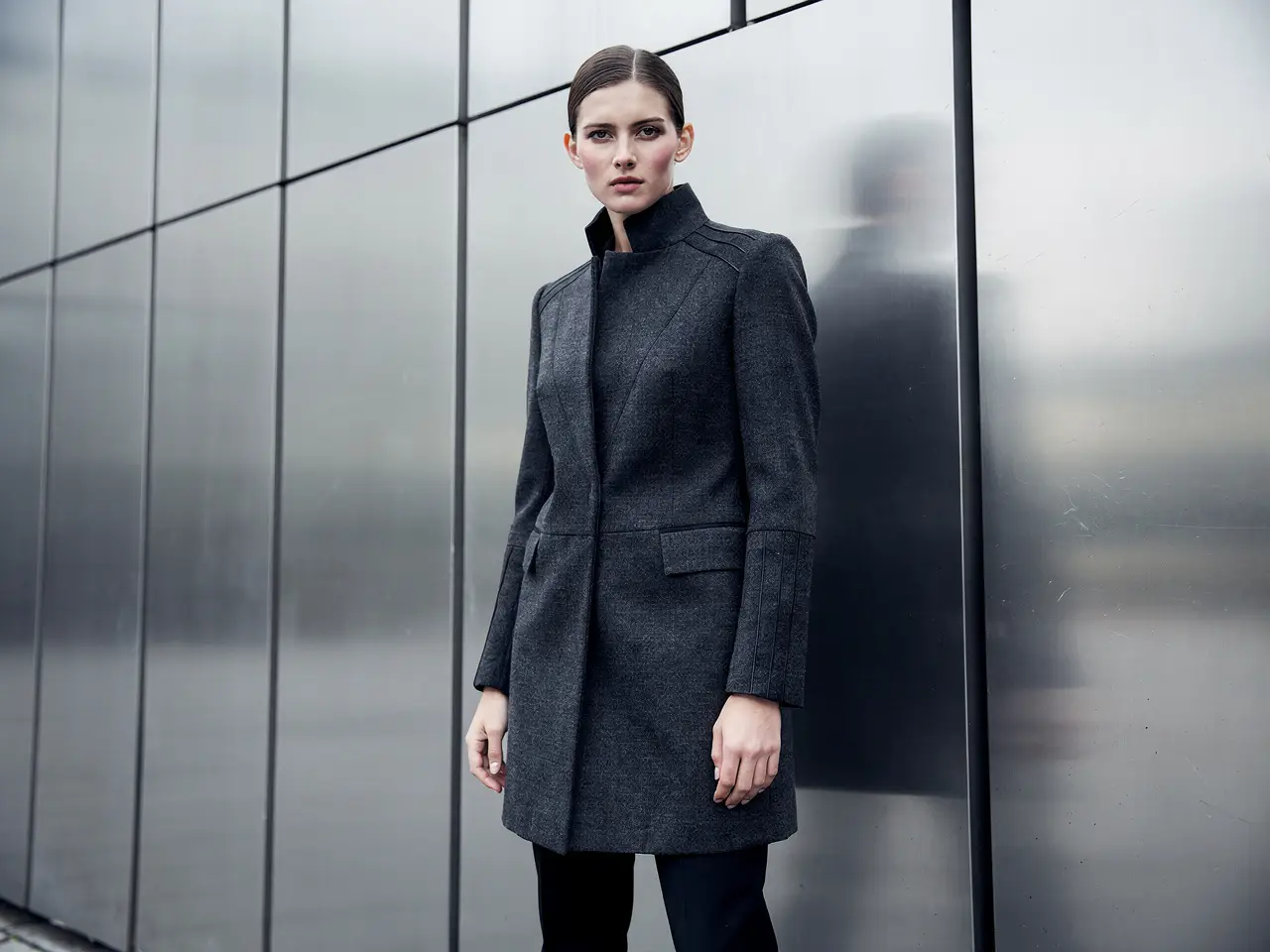
    Editorial fashion campaign still of an adult model in a structured coat

    Editorial Campaign Boards

    Editorial Campaign Boards

    An editorial fashion campaign still of an adult model in a structured coat against an architectural metal background starts with a prompt that names the garment, the pose, and the setting. An ai photo generator can produce a series of board-ready stills that share the same lighting and color palette, which helps a creative team align on mood before a shoot. Reference images and clips on this page are existing site examples, not proof of outputs from the selected model, but they illustrate the level of detail a prompt can describe.

    Illustrative campaign still for a written fashion brief.
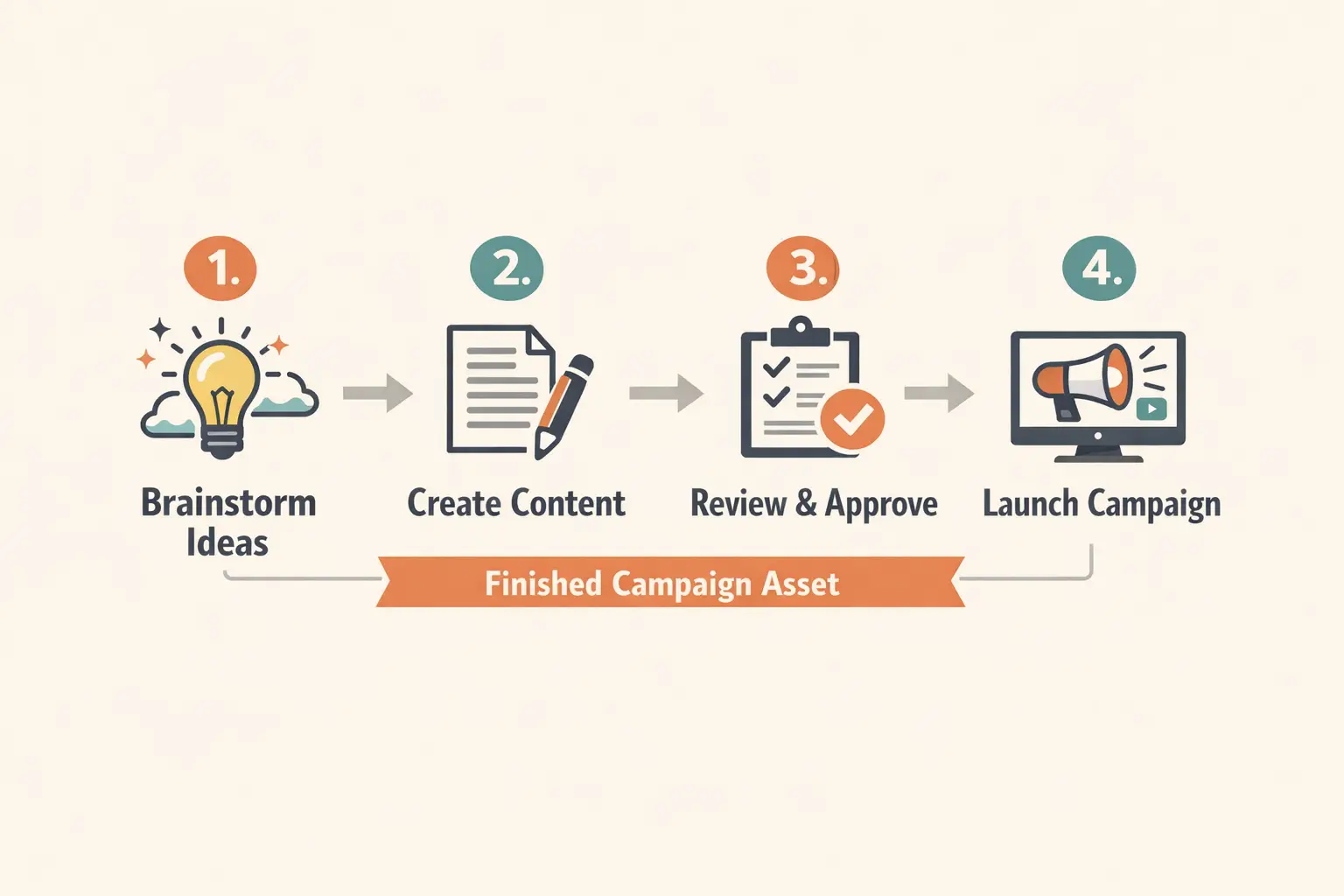
    Clean diagram-style explainer board with labeled panels

    Lesson and Chapter Art

    Lesson and Chapter Art

    A clean diagram-style explainer board with labeled panels works as chapter art when the prompt specifies the layout, the number of panels, and the visual hierarchy. An ai photo generator can render a structured composition that leaves room for overlaid text, which is useful for educational materials that need a consistent visual language. Write useful original explanations of input choices, framing, and result review, and treat each panel description as a separate clause in the prompt.

    Illustrative explainer still for a scene that only exists in notes.
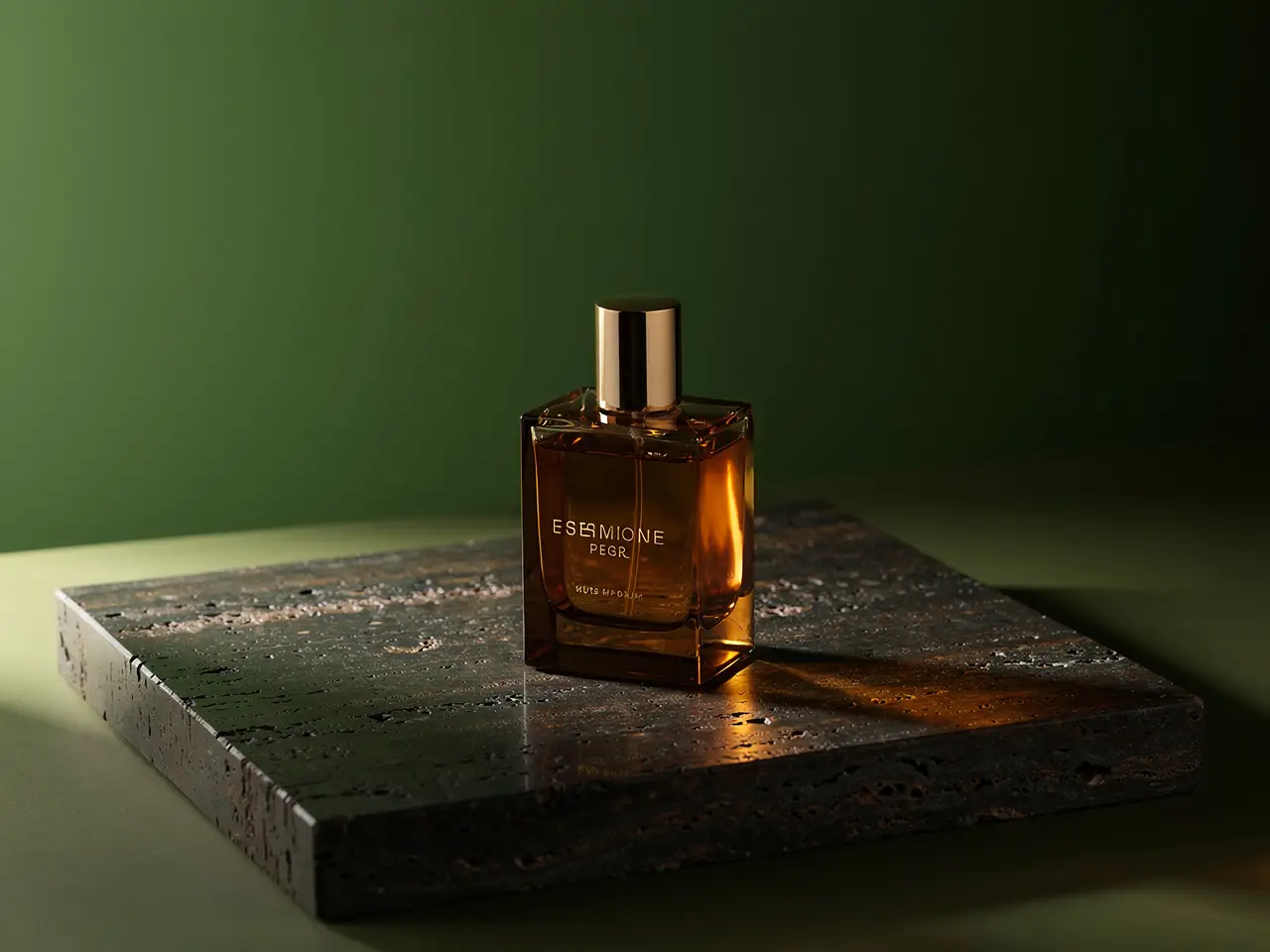
    Luxury fragrance bottle still life on a dark reflective surface

    Look Exploration for Product Stills

    Look Exploration for Product Stills

    A luxury fragrance bottle still life on a dark reflective surface is a look that depends on the surface texture, the light angle, and the bottle material. An ai photo generator lets you explore variations of the same product by changing the backdrop, the rim light, or the prop placement without rebuilding the entire scene. Submitting a generation task requires an authenticated account, and the task cost is shown in the workbench before submission, so you can budget for multiple explorations.

    Illustrative product still for a brief written before a prototype is photographed.

    Illustrative beverage still for a social-ad brief written from scratch.

    Travel poster layout of a coastal city overlook with open sky for type

    City Guide Poster Layout

    A travel poster layout of a coastal city overlook with open sky for type is a composition that reserves negative space for typography. An ai photo generator can build a scenic backdrop that leaves the upper third clear, which makes it ready for a title overlay. The text-to-image workflow starts from a written description of the subject, scene, lighting, and composition, so describe the open sky area explicitly in your prompt.

    Illustrative poster still. Lettering in a generated frame should be reviewed.

    →
    Restaurant explainer board with plated dishes arranged in a grid

    Check Remaining Capacity Before a Larger Batch

    A restaurant explainer board with plated dishes arranged in a grid is the kind of multi-element still that might take several runs to get right. An ai photo generator uses account credits for each submission, so checking your remaining capacity before a larger batch helps you plan the session. Generation uses account credits, with the task cost shown in the workbench before submission, and completed tasks appear in generation history for preview and download.
    View pricing→

    Creator workflow notes

    Working habits for a written still, not user reviews

    These notes describe common ways to run a written brief. They are not user reviews, ratings, or promises about a specific result.

    Campaign board pass

    Concept workflow

    “Write talent, location, and product in three sentences. Generate two competing crops. Keep the frame that already holds the idea, then change only light or wardrobe.”

    Lesson illustration pass

    Education workflow

    “Quote the source paragraph beside the prompt. Name the object that carries the idea. Reject any still that adds props the paragraph does not mention.”

    Catalog look pass

    Product workflow

    “Lock silhouette, material, and surface first. Explore lifestyle context only after a clean pack shot exists. Stop when the object is readable, not when the mood feels expensive.”

    Yes. The text-to-image workflow starts from a written description, so you do not need an existing photo. Describe the subject, scene, lighting, and composition in words, and Seedream 5 Pro will build the still from that brief.

    How to Steer the Next Still

    An ai photo generator produces a result based on the prompt you submitted, and small changes to that prompt can shift the output in a predictable direction. Inspect framing, subject detail, and visual consistency in each result before refining the input, and rewrite only the clause that needs adjustment. Completed tasks appear in generation history for preview and download, so you can compare the before and after versions side by side.

    Why did the still ignore part of my description?

    +−

    A long prompt can dilute the weight of individual clauses. Try moving the ignored detail to the beginning of the prompt and removing competing descriptions that might confuse the model.

    How do I keep a series looking related?

    +−

    Repeat the lighting, backdrop, and color palette clauses in every prompt. Change only the subject or prop placement, and keep the environmental description identical across the series.

    Access, Credits, and What to Do Next

    Submitting a generation task requires an authenticated account, and generation uses account credits with the task cost shown in the workbench before submission. An ai photo generator processes each task individually, and completed tasks appear in generation history for preview and download. Use only supported product facts for capabilities, and check the cost line before every submission to stay within your planned budget.

    Where do I see what a run will cost?

    +−

    The task cost is displayed in the workbench before submission. Review that cost line each time you change the model, aspect ratio, or resolution settings.

    What should I do after I have a still I want to keep?

    +−

    Download the still from your generation history and consider using a related tool to rewrite the prompt from the file or to turn the approved still into a motion test.

    Editorial text layout still used to illustrate a written brief, not a workbench screenshot
    Illustrative reference for turning notes into a still. The live form sits in the workbench above.

    Anyken AI

    Open the text-to-image workbench and start your first generation.

    For ai photo generator on Anyken, use this section to review next creation. Match these details to your input and the controls in the selected workflow.

    Open the text-to-image workbench and start your first generation.View pricingBrowse related tools
    Creative tools & scenesAI image generators
    • Open image to image
    • Open image to video
    • View pricing
    • ai onlyfans image generator
    • ai onlifans image generator
    • ai nude woman generator
    • ai photo generator to sexy
    • ai photo generator without restrictions
    • ai photo generator wrestling xxx