• Home
  • For You
  • Create
  • Pricing
  • More
Anyken
Pricing
Settings
Language
ThemeAtelier
NSFW Video GeneratorNSFW Image GeneratorPrivacy policyTerms of serviceRefund policy
Anyken
  • Home
  • For You
  • Studio
  • My AI
  • AI Video
  • AI Image
  • Anime / Manga
  • AI Tools
  • Generate
  • Agent
  • Home
  • For You

Create & chat

  • Studio
  • AI Video
  • AI Image
  • Anime / Manga
  • Generate
  • Agent

Public discovery

  • My AI
  • AI Tools
Upgrade for more
    1. Home
    2. ›More specialized creative tools
    3. ›AI image generators
    4. ›ai photo editor

    Anyken AI

    ai photo editor on Anyken

    Use this ai photo editor guide to plan your Anyken creation. Start with the input described on this page, review the examples and choose a model that supports the task. The workspace shows available controls and the credit estimate before you create.

    Open the workbench and submit your first reference rewrite.
    Anyken
    ContactPrivacyTermsRefund

    Anyken | AI Video & Image Generator

    support@anyken.com

    Contact Anyken at support@anyken.com with the page URL and a description of your question. Model names and trademarks belong to their owners.

    © 2026 Anyken. All rights reserved. ACKERMAN TECH SOLUTIONS LLC

    03
    Nano Banana ProNano Banana ProFlux 2Flux 2Qwen Image 2Qwen Image 2Seedream 5 ProSeedream 5 ProGPT Image 2.0GPT Image 2.0
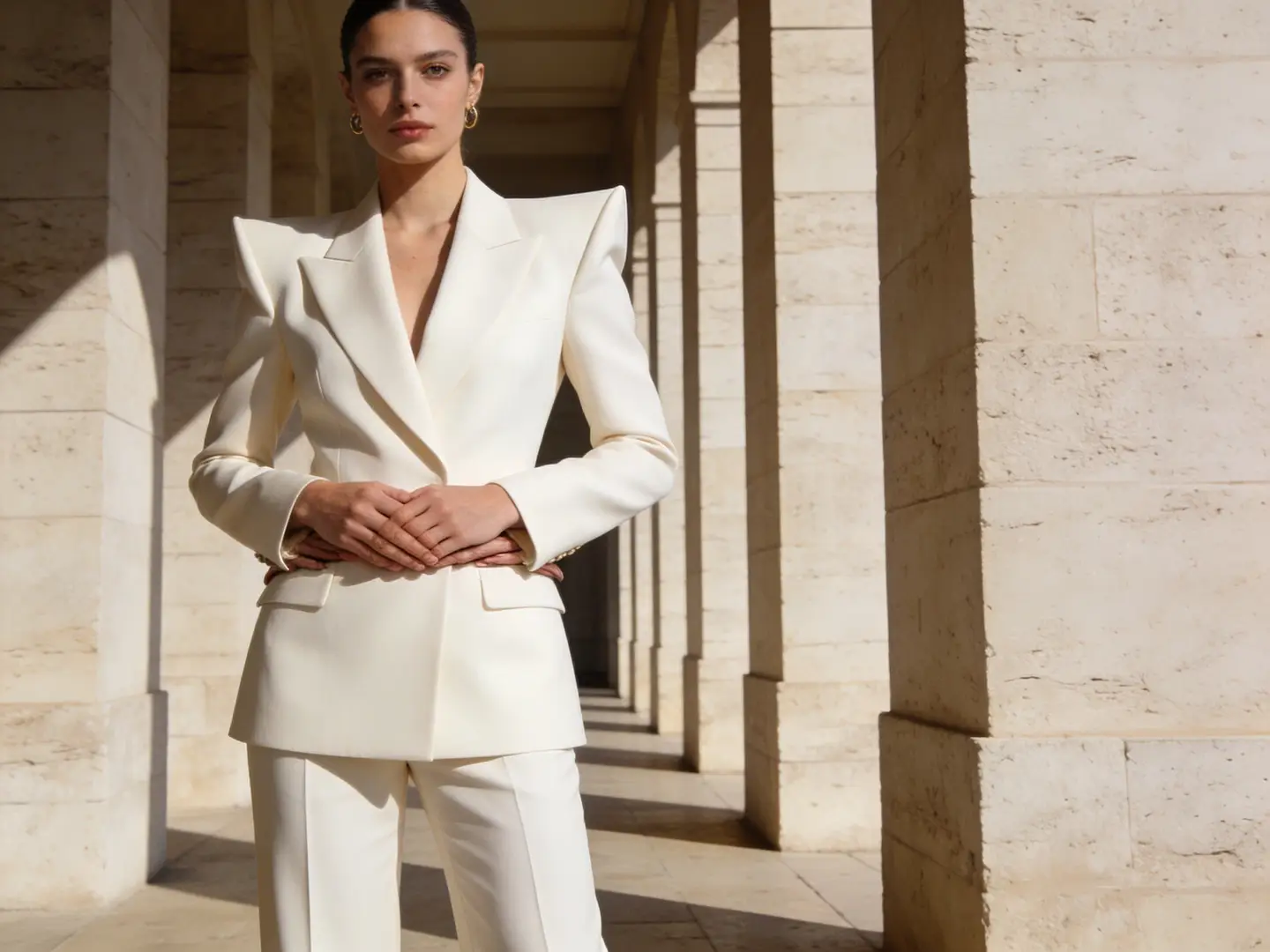
    Adult woman in a structured white suit presented in an editorial fashion frame
    Adult fashion directionA compact editorial reference makes it easy to test styling, colorway, and crop while keeping the subject grounded.
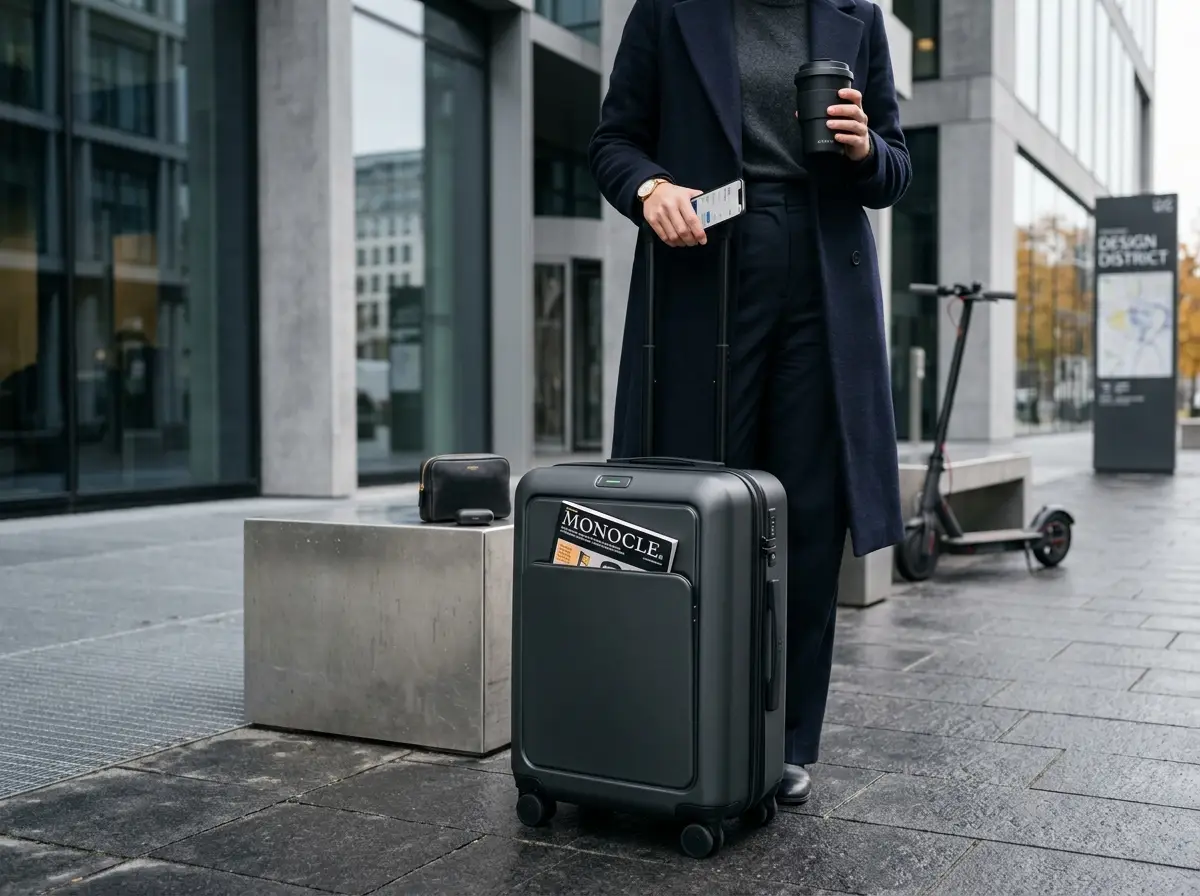
    Traveler holding a cup and phone beside a black suitcase on a city sidewalk
    Premium product refreshA clean product reference is useful for testing a new surface, colorway, or campaign backdrop without losing the object silhouette.

    ai photo editor: Model and input choices

    For ai photo editor on Anyken, use this section to review model and input choices. Match these details to your input and the controls in the selected workflow.

    01

    ai photo editor: Model and Input

    Seedream 5 Pro is the selected image model for this page, and it works best when you treat the reference as a structural guide rather than a pixel map. An ai photo editor should let you describe what stays and what transforms, and this model reads both signals together. Choose it when the job needs a believable material finish, consistent lighting, and a composition that holds its ground while the details change. An ai photo editor that skips model selection leaves too much to chance, so confirm Seedream 5 Pro is active before you upload.

    02

    Lock the Aspect Ratio Before You Prompt

    The image-to-image workflow accepts a reference image and a description of the desired visual changes, but the aspect ratio you set determines whether the output fits its destination. An ai photo editor can stretch or crop a result that was composed for a different frame, so match the ratio to the final use before you submit. If the reference is a square product shot and the output needs to fill a 4:5 campaign board, set that ratio early. An ai photo editor that lets you change the ratio after generation forces a second round of inspection.

    03

    Review the Result and Adjust the Input

    Completed tasks appear in generation history for preview and download, giving you a side-by-side moment to inspect framing, subject detail, and visual consistency. An ai photo editor does not read your intention; it reads your prompt and your reference, and the gap between them shows up in the output. If a material looks plastic when it should feel matte, adjust the description and run again. An ai photo editor rewards iteration, and the workbench keeps your previous settings so you can refine one clause at a time.

    ai photo editor: Workflow features

    For ai photo editor on Anyken, use this section to review workflow features. Match these details to your input and the controls in the selected workflow.

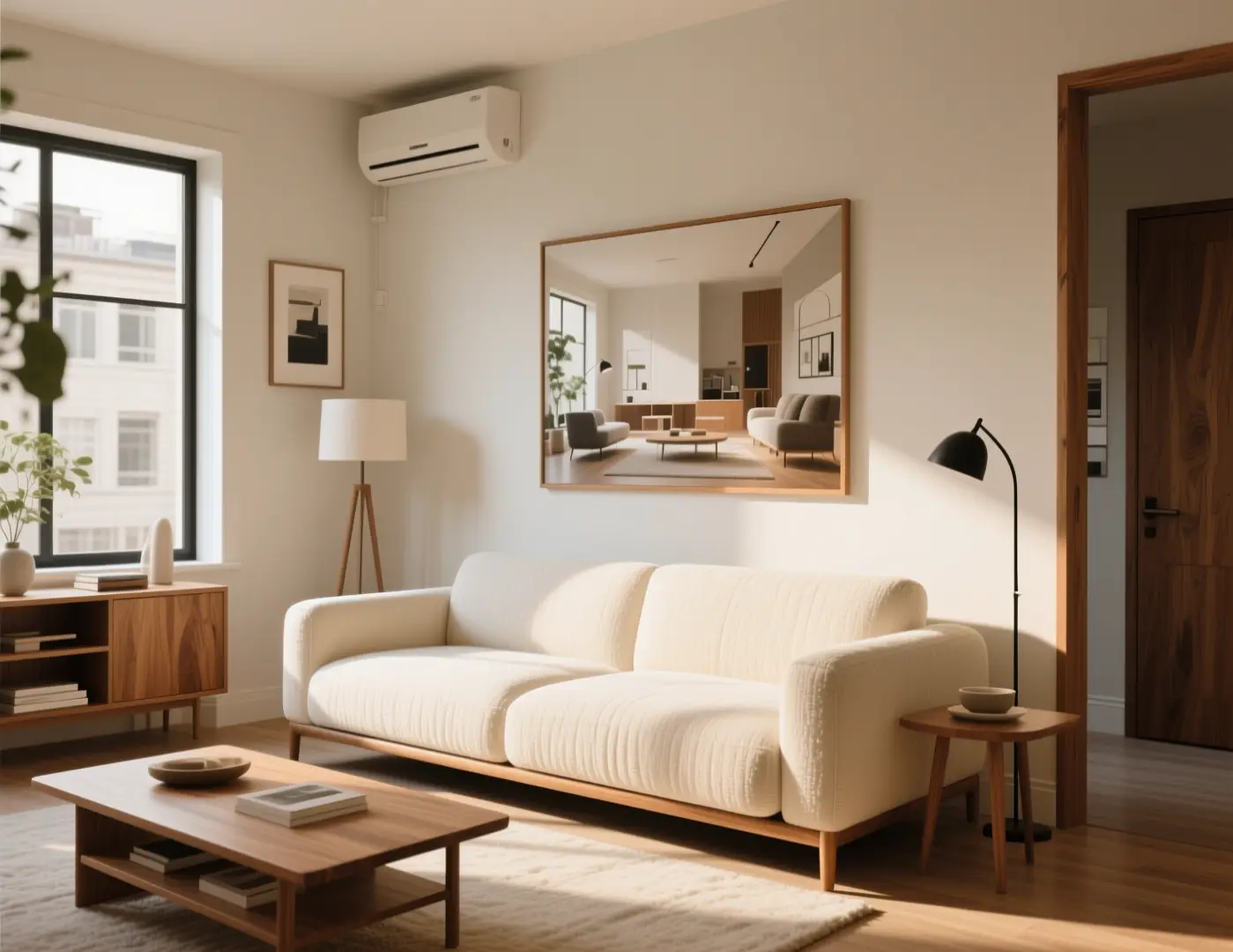
    Neutral living room with sofa, plants, and even daylight
    Illustrative source: a room that already holds furniture layout and camera height.

    01

    Choose a Reference That Already Holds the Structure

    A neutral living room with sofa, plants, and even daylight makes a strong reference because the spatial layout is clear and the lighting is predictable. An ai photo editor reads the arrangement of objects, not just the colors, so a cluttered source confuses the model. Pick a reference where the composition already works and the surfaces are legible. This online photo editor workflow depends on a clean starting point, and a well-chosen reference cuts the number of retries in half. An ai photo editor can reinterpret materials and palette, but it cannot rescue a source where the structure is unreadable.

    Keep the living room layout, sofa, plants, and camera height from the uploaded photo. Change only the lighting: cooler overcast window light, slightly deeper shadows under the coffee table, same furniture, no extra windows or chairs.
    place it on a Qwen still
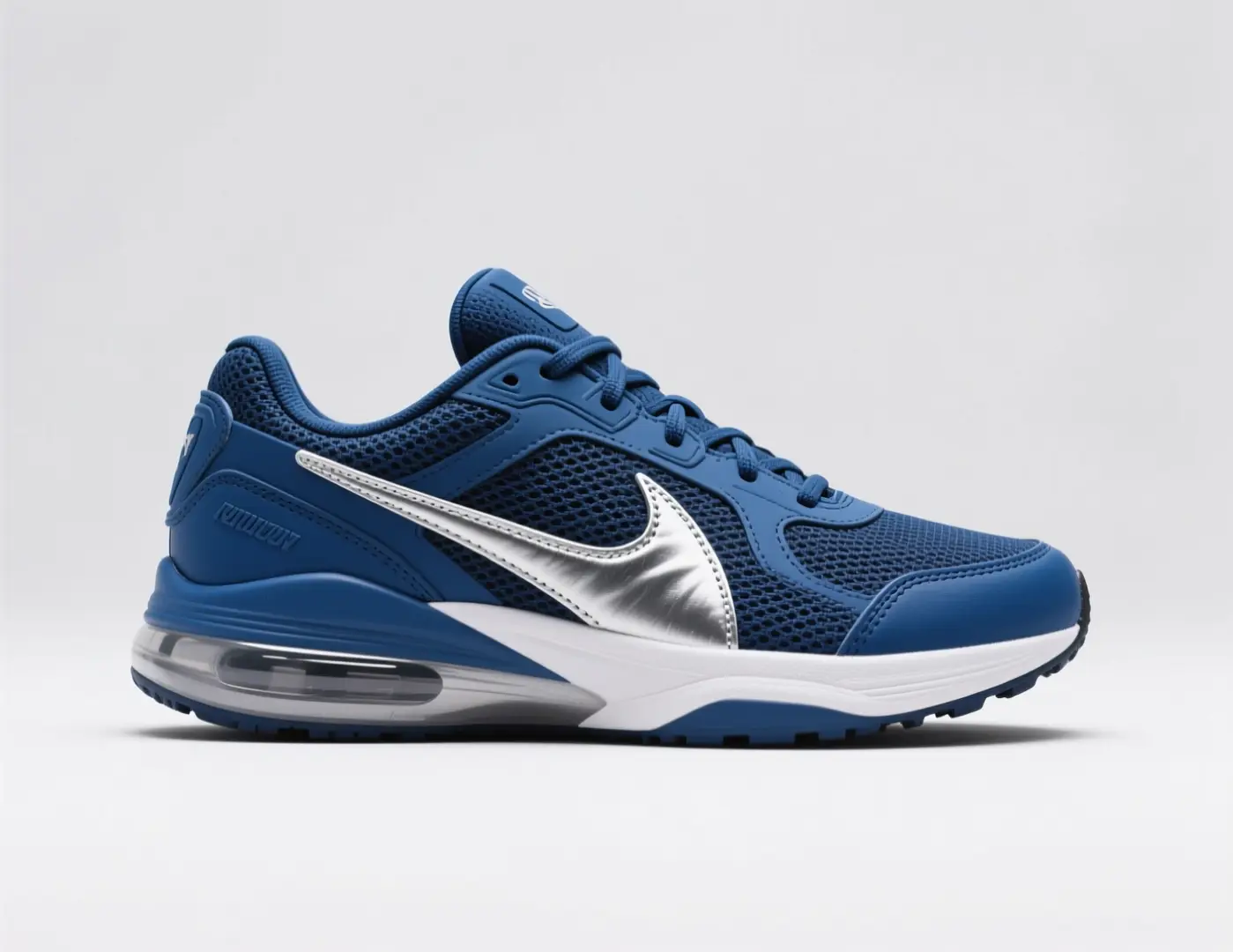
    Navy athletic sneaker with a pale sole on a plain background
    Illustrative source for a colorway test. Not a verified edit pair.

    02

    State What Must Stay and What Is Allowed to Change

    A navy athletic sneaker with a pale sole on a plain background is a subject where the silhouette matters more than the colorway. An ai photo editor needs you to separate the keep list from the change list in the prompt. Write that the shoe shape, sole profile, and lacing should remain, while the upper material, color, and background can shift. An ai photo editor that receives a vague description will guess, and the guess rarely matches the brief. Be explicit about the boundaries, and the output will stay within them.

    From the uploaded sneaker photo, retain the last, sole shape, stitching, and three-quarter angle. Request a colorway change only: deep burgundy upper, off-white midsole, no extra logos, same catalog crop.
    draft this on Seedream
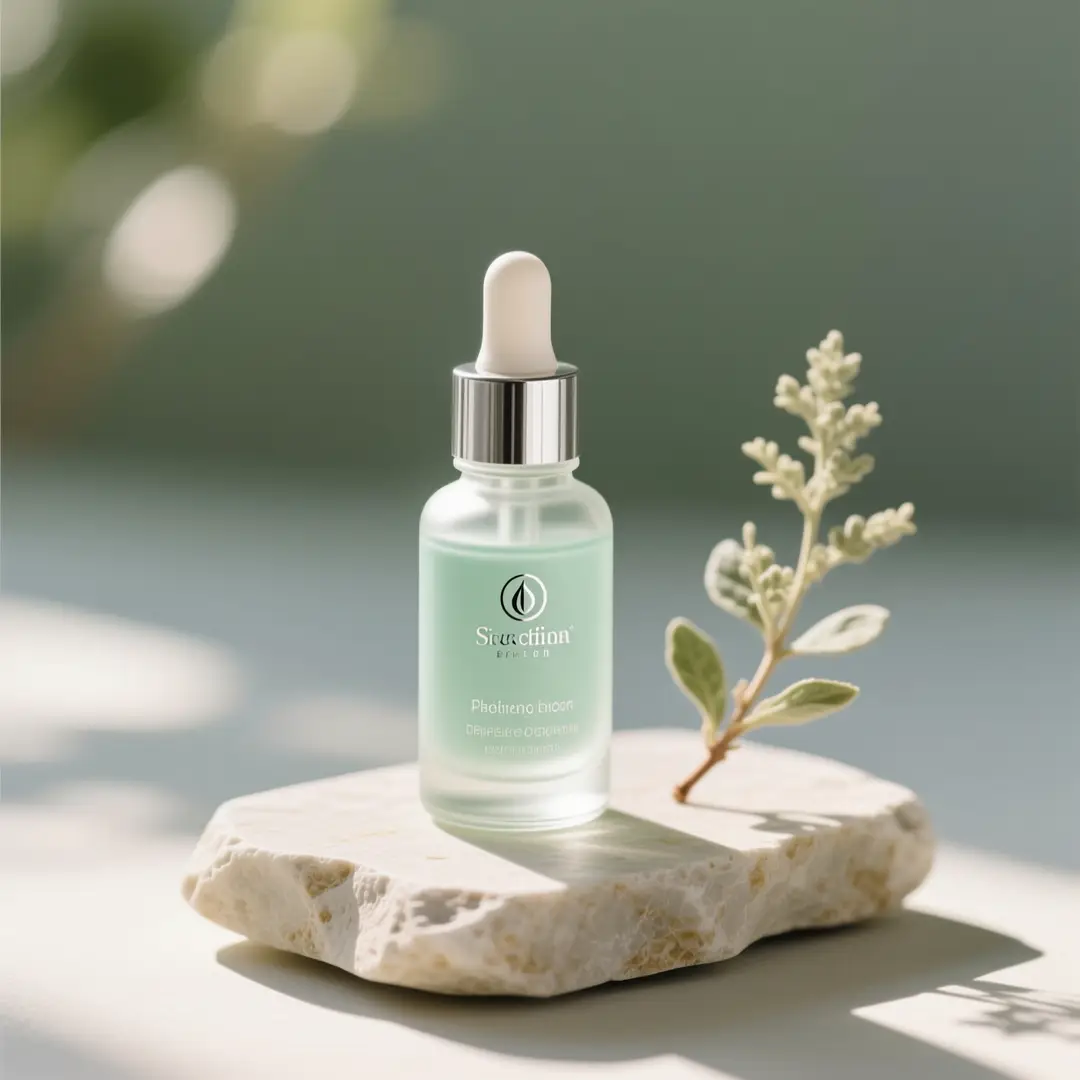
    Cosmetic glass dropper bottle with flowers on a neutral surface
    Illustrative source for a backdrop swap. Prompt example only.

    03

    Restyle a Draft Without Starting from a Blank Page

    A cosmetic glass dropper bottle with flowers on a neutral surface is a finished still that might need a seasonal refresh. An ai photo editor lets you keep the bottle shape and the dropper detail while changing the flower type, the label color, and the surface texture. This is faster than setting up a new shoot and more controlled than generating from text alone. An ai photo editor that accepts a reference preserves the product identity while giving you room to explore variations for a campaign or a catalog update.

    Keep the dropper bottle, cap, scale, and front-facing crop from the upload. Do not invent extra label lettering. Move the set onto cool slate with a window wash from the left and a quieter floral accent.
    try the look in GPT Image

    ai photo editor: Project ideas

    For ai photo editor on Anyken, use this section to review project ideas. Match these details to your input and the controls in the selected workflow.

    Image-to-image creation scenarios
    Premium packaging bottles arranged on a clean campaign board

    Catalog Finish for Premium Packaging

    Catalog Finish for Premium Packaging

    Premium packaging bottles arranged on a clean campaign board need consistent lighting, accurate label placement, and a surface that reads as glass or coated paper. An ai photo editor can take a single reference shot and produce a set of variations where the bottle shape stays fixed and the label design, cap color, and background shift. This keeps the catalog cohesive without requiring a new photo for every SKU. An ai photo editor that preserves the structural elements while refreshing the surface details turns one approved still into a full product line.

    Illustrative catalog still for a packaging rewrite.
    Bright living room refresh with sofa, rug, and daylight from tall windows

    Room Restage with Controlled Daylight

    Room Restage with Controlled Daylight

    A bright living room refresh with sofa, rug, and daylight from tall windows is a restage where the spatial envelope stays and the furnishings change. An ai photo editor reads the window placement, the floor plane, and the existing furniture mass, then applies your description of new upholstery, a different rug pattern, and adjusted wall color. The result keeps the room proportions and the light direction intact while updating the look. An ai photo editor that respects the architectural frame gives you a believable restage without rebuilding the scene.

    Illustrative interior source for a seasonal lighting rewrite.
    Packaging refresh board with boxes and bottles in a structured layout

    Sketch to Finished Campaign Board

    Sketch to Finished Campaign Board

    A packaging refresh board with boxes and bottles in a structured layout can start as a rough arrangement and become a polished campaign still. An ai photo editor accepts the layout as the reference and fills in materials, lighting, and surface detail from your description. The boxes keep their relative positions, and the bottles hold their grouping, while the finish moves from placeholder to production-ready. An ai photo editor that bridges sketch and finish lets the design team approve the composition before the rendering work begins.

    Illustrative finish pass for a drawing or pack that already exists.

    ai photo editor: Visual examples

    For ai photo editor on Anyken, use this section to review visual examples. Match these details to your input and the controls in the selected workflow.

    Illustrative references. Not verified Anyken input/output pairs.

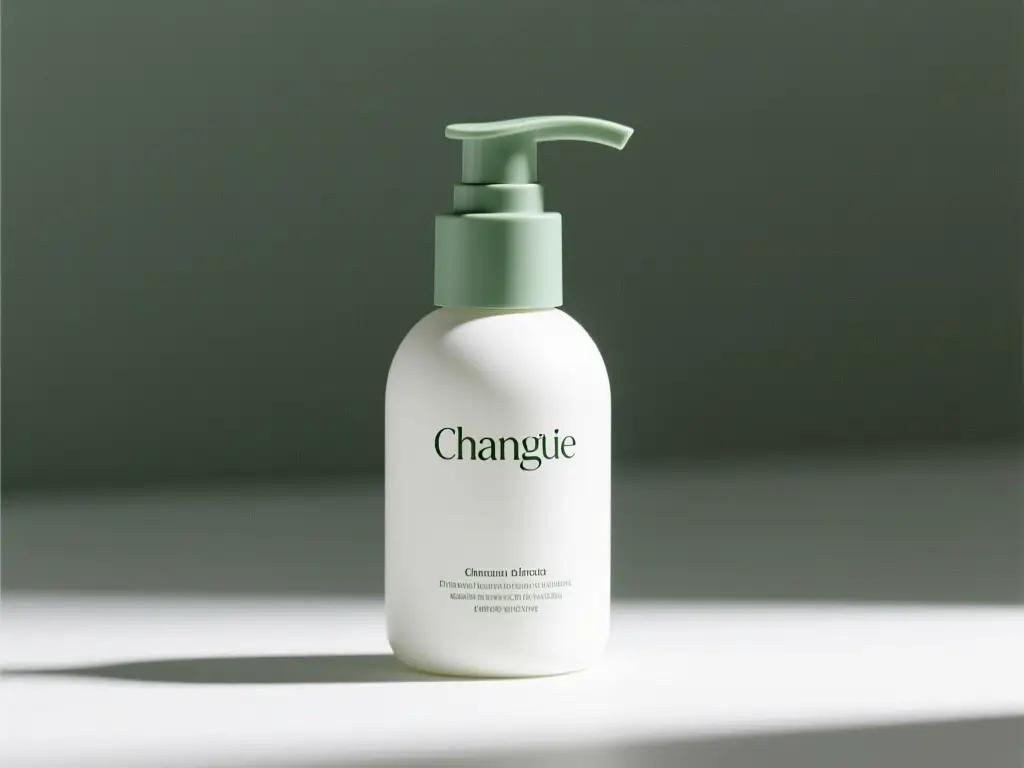
    Skincare packaging arranged as a reference-guided refresh board

    Reference-Guided Packaging Refresh

    Skincare packaging arranged as a reference-guided refresh board shows how a single product shot can spawn a coordinated lineup. An ai photo editor reads the bottle proportions, the cap detail, and the label area, then applies new colorways and surface finishes across the set. The creative decision here is to keep the bottle geometry and the arrangement grid fixed while letting the palette and the label typography evolve. An ai photo editor that holds the structure steady while refreshing the skin gives the brand a consistent campaign language.

    Illustrative source for a label-aware packaging rewrite.

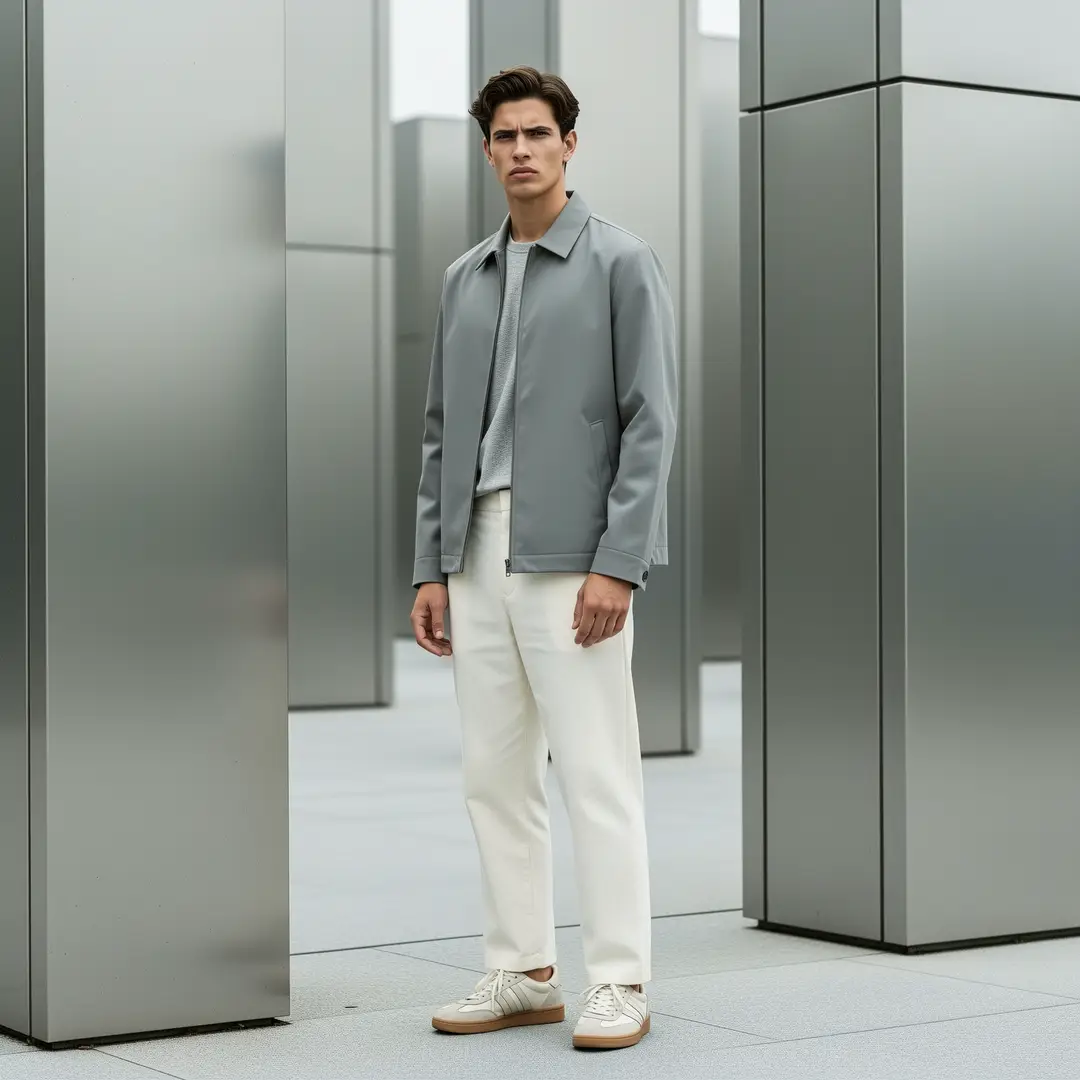
    Streetwear lookbook frame of an adult in a structured jacket

    Lookbook Frame with Structured Silhouette

    A streetwear lookbook frame of an adult in a structured jacket uses the garment shape as the anchor. An ai photo editor can change the fabric, the color, and the background while keeping the pose, the collar line, and the shoulder drop intact. The creative decision is to treat the jacket silhouette as the keep list and the textile and setting as the change list. An ai photo editor that respects the fit and drape of the original garment produces a lookbook variation that still reads as the same cut.

    Illustrative lookbook source for a venue or lighting change.

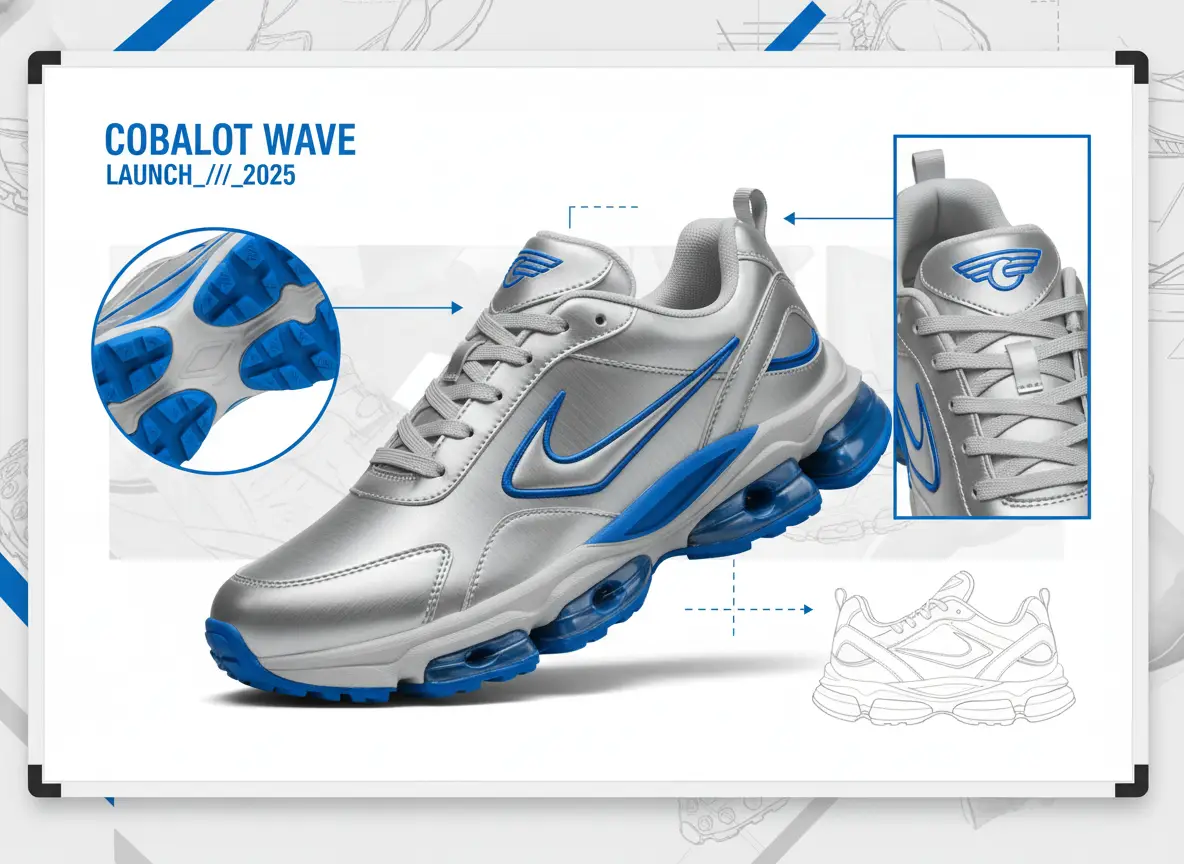
    Multi-image sneaker board showing colorway variations on a studio field

    Colorway Board on a Studio Field

    A multi-image sneaker board showing colorway variations on a studio field demonstrates how one reference can drive a full range. An ai photo editor keeps the shoe profile, the sole unit, and the lacing system consistent while cycling through upper materials and accent colors. The creative decision is to lock the product identity and let the surface treatment carry the variation. An ai photo editor that maintains the silhouette across every colorway gives the buyer a clear comparison without distracting shape differences.

    Illustrative board for colorway tests from one source shoe.

    ai photo editor: Related workflows

    For ai photo editor on Anyken, use this section to review related workflows. Match these details to your input and the controls in the selected workflow.

    Travel concept board with a suitcase, neck pillow, passport sleeve and toiletry pouch

    Invent a Neighboring Concept Without Inheriting the File

    A travel concept board with a suitcase, neck pillow, passport sleeve, and toiletry pouch is a different brief from the product still you just finished. An ai photo editor session that produced a clean catalog shot should not have its settings carried over to a lifestyle layout. Start a fresh task, upload the new reference, and write a prompt that describes the travel arrangement rather than the product detail. An ai photo editor works best when each task has its own clear brief, not a recycled one.

    write a new still→
    Skincare product board ready to be used as a first frame

    Move an Approved Rewrite into a Clip

    A skincare product board ready to be used as a first frame can become the opening still of a short product clip. Anyken has an image-to-image workbench with prompt, aspect-ratio and model controls, and the same reference that produced the still can guide the first frame of a motion sequence. An ai photo editor gives you the static image; the next step is to bring that image into a timeline and build the motion around it.

    animate the approved frame→
    Berry drink launch still used as a reminder to budget remaining runs

    Confirm the Plan Still Covers the Remaining Rewrites

    A berry drink launch still used as a reminder to budget remaining runs helps you decide whether to refine the current result or move to the next SKU. An ai photo editor session consumes credits, and the task cost is shown before submission, so you can check your remaining budget against the list of pending rewrites. If the current output is close enough, download it and allocate the saved credits to a harder brief. An ai photo editor rewards disciplined budgeting as much as good prompting.

    View pricing→

    ai photo editor: Prompt and reference tips

    For ai photo editor on Anyken, use this section to review prompt and reference tips. Match these details to your input and the controls in the selected workflow.

    01

    Crop the Source to the Job Before You Upload

    An ai photo editor reads the entire frame, including background clutter and edge distractions that you stopped noticing. Crop the reference to the exact subject area you want the model to work with, removing anything that should not influence the output. If the job is a product still, crop to the product and its immediate surface. An ai photo editor that receives a tight, clean reference has fewer opportunities to invent objects that were not in the photo.

    02

    Keep the Keep List Shorter Than the Change List

    It is tempting to write a long keep list to protect every detail, but an ai photo editor performs better when the keep list is short and the change list is specific. Identify the three or four elements that define the subject, lock those, and let the rest be open to reinterpretation. An ai photo editor that receives a balanced prompt produces a result that feels intentional rather than over-constrained. If the output drifts on a detail you forgot to lock, add it to the keep list in the next run.

    03

    Inspect the Source and the Result Together

    Completed tasks appear in generation history for preview and download, and the most useful inspection happens when you place the reference and the output side by side. An ai photo editor can reinterpret source details, so check whether the changes serve the brief or distract from it. Look at edges, material transitions, and the parts of the image you did not describe. An ai photo editor that passes a quick glance may still have introduced a texture or a shadow that needs correction.

    Creator workflow notes

    Working habits for a referenced rewrite, not user reviews

    These notes describe common ways to run a keep-and-change pass. They are not user reviews, ratings, or promises about a specific result.

    Lighting rewrite

    Interior workflow

    “Keep furniture count and camera height. Change only the window light. If a new chair appears, the change list was too broad.”

    Colorway rewrite

    Product workflow

    “Keep last, stitching, and angle. Change only the upper color. Inspect the sole and any label area against the upload.”

    Finish rewrite

    Illustration workflow

    “Keep pose and staging lines. Name the new medium in one clause. Check hands, eyes, and lettering before you accept the plate.”

    ai photo editor: Questions and answers

    For ai photo editor on Anyken, use this section to review questions and answers. Match these details to your input and the controls in the selected workflow.

    What to Upload and What to Write Beside It

    The image-to-image workflow accepts a reference image and a description of the desired visual changes. Upload a clear, well-lit still where the subject fills most of the frame, and write a prompt that separates the elements to keep from the elements to change. An ai photo editor reads both inputs together, so a strong reference paired with a vague description will still produce a vague result. Prepare the file and the text before you open the workbench.

    What file format works best in an ai photo editor?

    +−

    The workbench accepts common image formats. Choose a file with enough resolution to show the surface detail and edges you want the model to read. A compressed or low-light source gives the model less information to work with, and the output will reflect that uncertainty.

    Do I need to describe the whole picture again?

    +−

    No. Describe only what should change and what must stay. The reference already provides the composition, so your prompt can focus on the material, color, and finish differences. An ai photo editor uses the reference as the structural base and the prompt as the modification layer.

    How to Judge Whether the Result Is Close Enough

    Inspect framing, subject detail, and visual consistency in each result before refining the input. An ai photo editor can reinterpret source details, so a result that looks correct at a glance may have shifted a shadow or softened an edge you needed sharp. Compare the output to the reference and to your written brief, not to an ideal version in your head.

    Why did the output invent objects that were not in the photo?

    +−

    The model can reinterpret source details when the prompt is open-ended or the reference contains ambiguous areas. If the output adds a prop or a texture you did not request, tighten the keep list in your next prompt and crop the reference more closely to the subject. An ai photo editor responds to specificity.

    Can I lock one region and freely restyle the rest?

    +−

    The workbench does not offer region masks. Describe the elements to preserve in the prompt, and the model will weigh those instructions against the reference. If a particular area consistently drifts, adjust the wording to give it more weight in the keep list.

    Credits, Limits, and Sensible Next Steps

    Generation uses account credits, with the task cost shown in the workbench before submission. Submitting a generation task requires an authenticated account. An ai photo editor session is a paid task, so plan your runs around the briefs that need the most control.

    Is the cost the same as generating without a reference?

    +−

    The task cost is shown in the workbench before submission and may differ from a text-to-image generation. Check the displayed credit amount before you submit so you can budget your session across multiple rewrites.

    What if I need a new idea that the reference should not constrain?

    +−

    Start a separate text-to-image task with a fresh prompt and no reference upload. An ai photo editor is built for guided rewrites; when you need an unconstrained concept, use a different workflow so the reference does not pull the output toward the existing composition.

    ai photo editor: Creation steps

    For ai photo editor on Anyken, use this section to review creation steps. Match these details to your input and the controls in the selected workflow.

    Step 1: Upload One Clear Reference and Crop It to the Job

    Open the image-to-image workbench inside Anyken and upload the reference still. Crop the frame to the subject area that matters for the task, removing background elements that should not influence the output. An ai photo editor reads the whole image, so a tight crop is the simplest way to reduce unwanted invention. Confirm the upload looks sharp and well-exposed before you move to the prompt.

    Step 2: Write Keep-and-Change Notes, Then Set Model, Ratio, and Resolution

    In the prompt field, list the elements to preserve and the elements to transform. Be specific about materials, colors, and lighting. Then select Seedream 5 Pro as the model, choose the aspect ratio that matches your output destination, and check the resolution setting. An ai photo editor uses all of these controls together, so a mismatched ratio or the wrong model will undermine even a well-written prompt.

    Step 3: Inspect Fidelity, Then Adjust Only the Clause That Failed

    Submit the task and review the result in generation history. Compare the output to the reference and to your keep list. If a material reads wrong or a color shifted, adjust only that clause in the prompt and run again. An ai photo editor rewards targeted iteration; changing the whole prompt resets the learning and wastes credits.

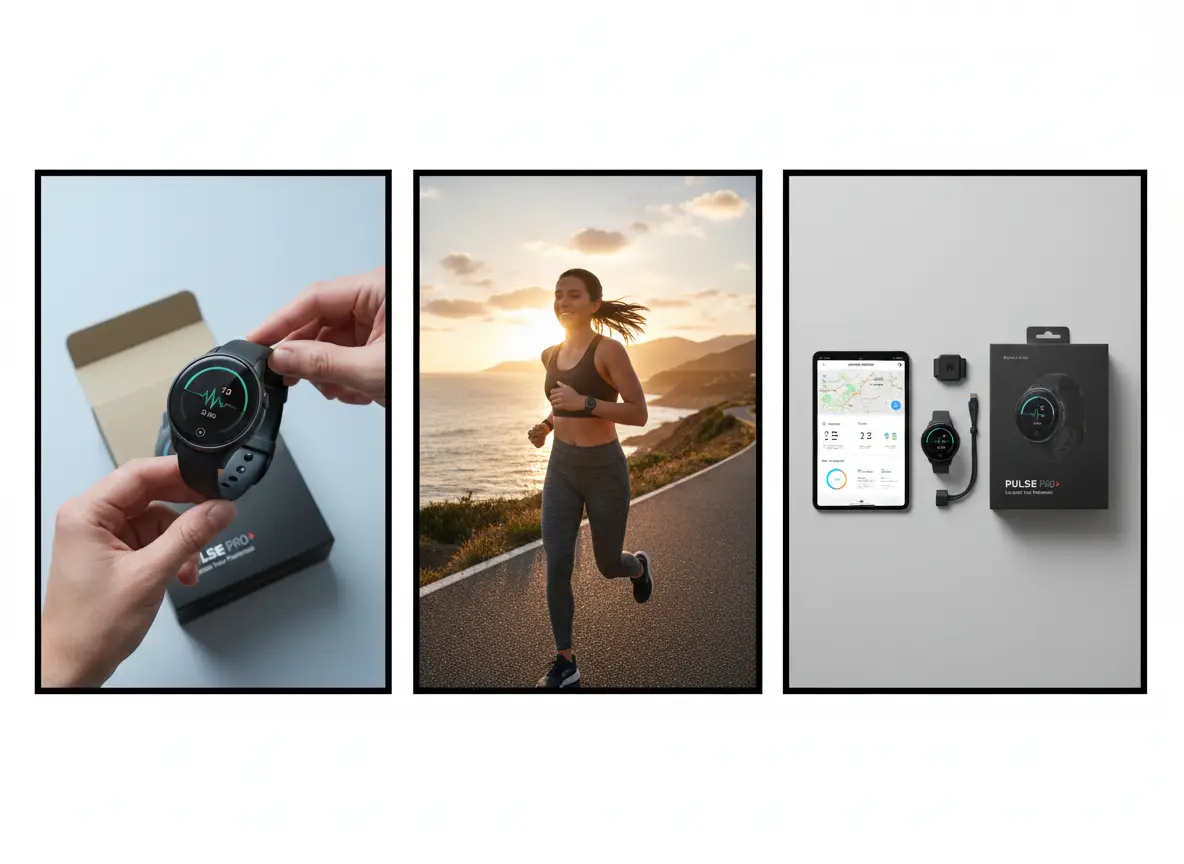
    Three-panel product storyboard used to illustrate a referenced rewrite, not a workbench screenshot
    Illustrative board for a keep-and-change pass. The live upload control sits in the workbench above.

    ai photo editor: Next creation

    For ai photo editor on Anyken, use this section to review next creation. Match these details to your input and the controls in the selected workflow.

    Freeze the Brief as Keep-and-Change, Not as a Mood

    An ai photo editor cannot interpret a mood; it reads specific instructions. Write the keep list and the change list in plain, concrete terms before you open the workbench. If the brief says warmer palette, define the target colors. If it says softer shadows, describe the light direction. An ai photo editor that receives a frozen brief produces a result you can evaluate against a clear standard.

    Cap the Budget for Retries on This File

    Generation uses account credits, and the task cost is shown before submission. Decide how many runs this reference is worth before you start, and stick to that cap. An ai photo editor session can drift into endless refinement if you do not set a limit. When you hit the cap, download the best result and move to the next brief.

    Set the Fidelity Bar You Will Inspect Against

    Define what close enough means for this task before you see the first output. Is it accurate label placement, consistent material finish, or believable lighting? An ai photo editor produces a range of results, and the fidelity bar keeps you from rejecting a usable output because it does not match an unstated ideal. Write the bar down and check each result against it.

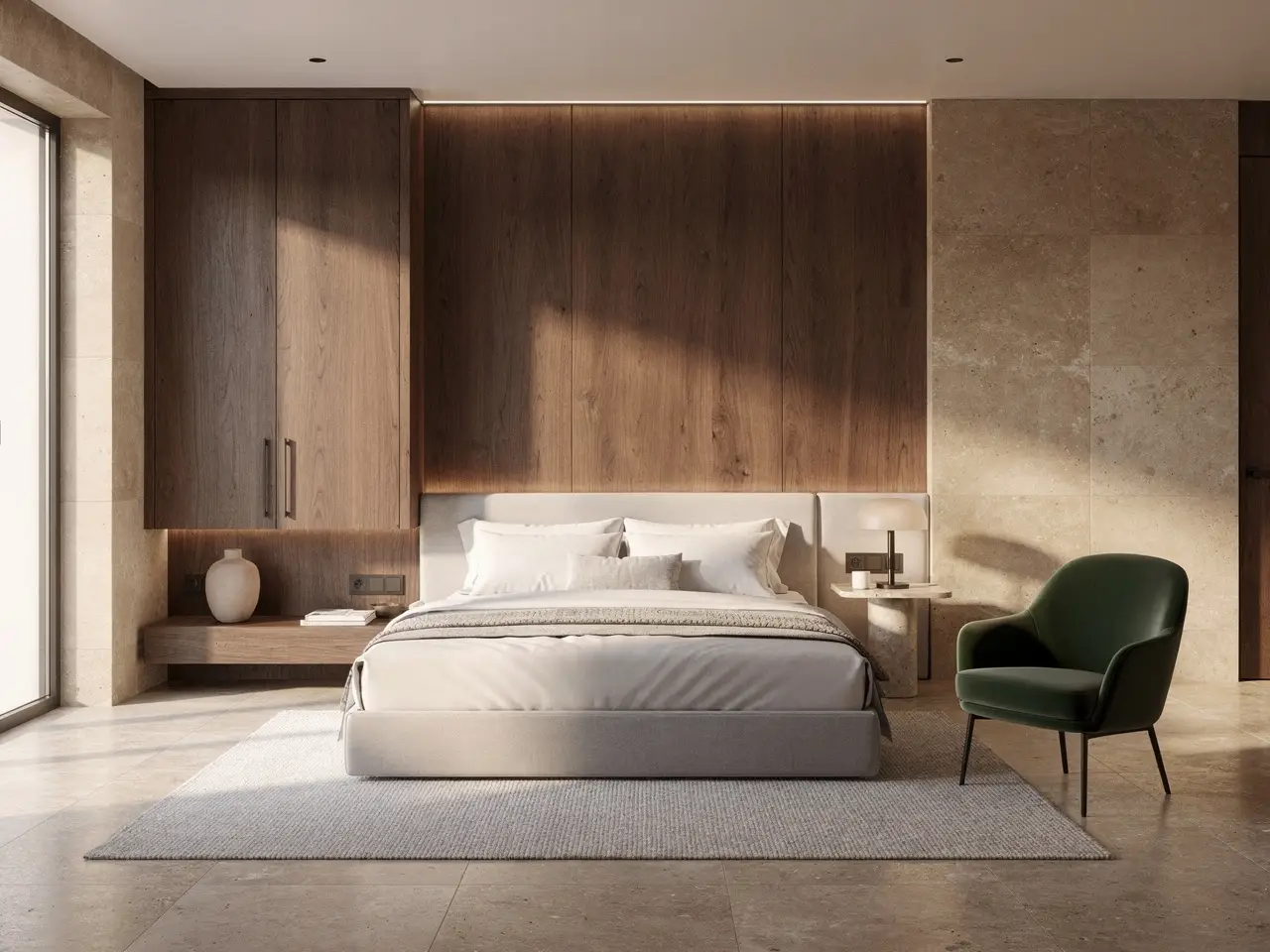
    Boutique hotel room concept used as a closing visual for referenced rewrites

    Anyken AI

    Open the workbench and submit your first reference rewrite.

    For ai photo editor on Anyken, use this section to review next creation. Match these details to your input and the controls in the selected workflow.

    Open the workbench and submit your first reference rewrite.View pricingBrowse related tools

    Model & settings

    Aspect Ratio

    Resolution

    Repeat

    1
    2STARTER5LITE8PRO10MAXCurrent

    12 credits

    Upload reference

    0/10
    Hints

    Prompt

    Describe the image you want to generate
    0/5000
    Credit cost

    1 images · 12 credits

    Samples are examples. Results follow the prompt and model and will not match the preview. For a closer match, use Image to Image for a still or Video to Video for a clip.

    1 / 2
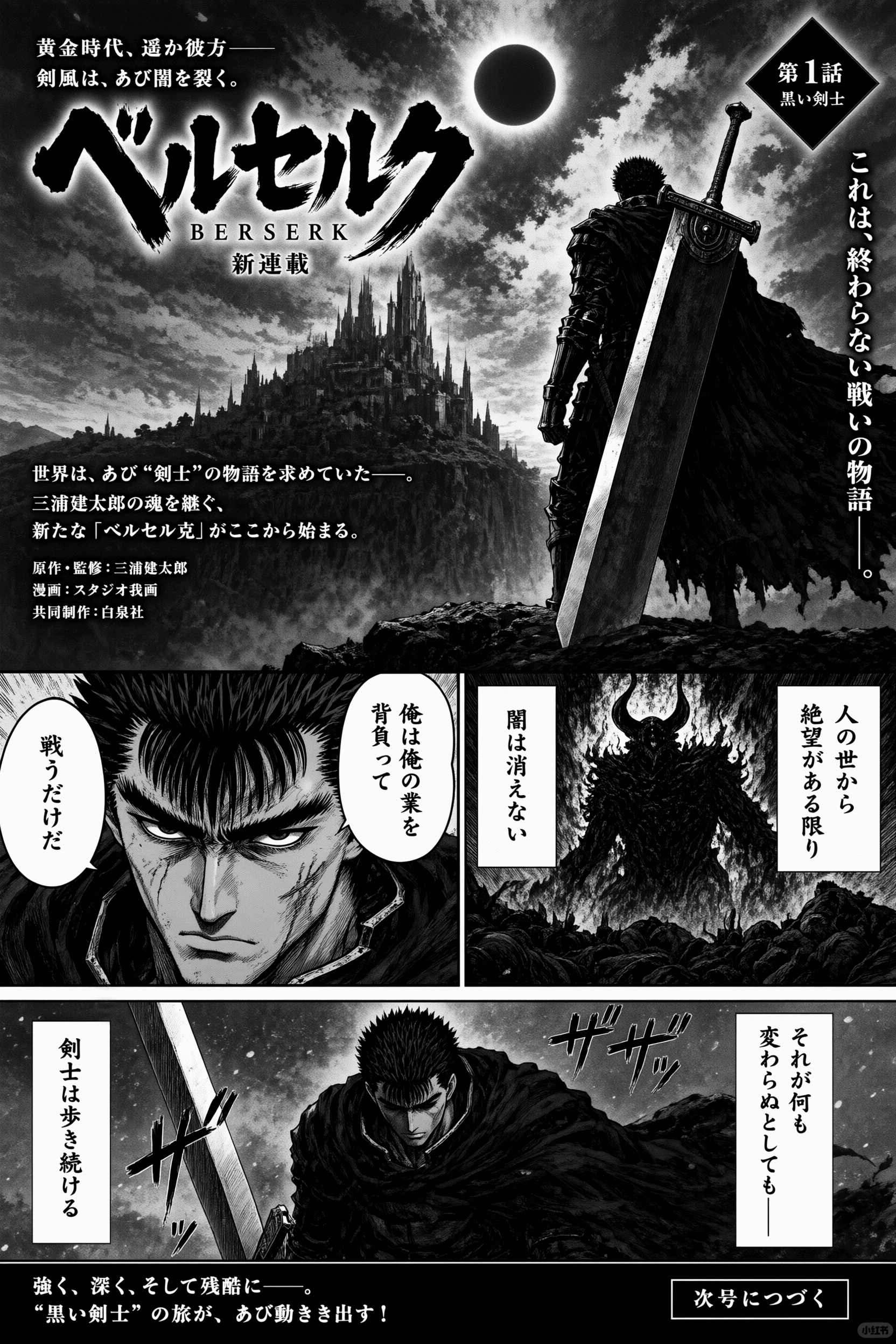
    Black-and-white illustrated manga page with a sword-bearing adult hero and dramatic panels
    Manga panel variationA clearly illustrated reference shows how image-to-image can preserve composition while changing tone, palette, or world-building details.
    Creative tools & scenesAI image generators
    • Open text to image
    • Open image to video
    • View pricing
    • ai nsfw image editor prompt
    • ai nsfw image creator from image
    • ai nsfw edit generator
    • ai sexy image editor
    • best ai image editor for nsfw
    • best image to image ai generator for nsfw