• Home
  • For You
  • Create
  • Pricing
  • More
Anyken
Pricing
Settings
Language
ThemeAtelier
NSFW Video GeneratorNSFW Image GeneratorPrivacy policyTerms of serviceRefund policy
Anyken
  • Home
  • For You
  • Studio
  • My AI
  • AI Video
  • AI Image
  • Anime / Manga
  • AI Tools
  • Generate
  • Agent
  • Home
  • For You

Create & chat

  • Studio
  • AI Video
  • AI Image
  • Anime / Manga
  • Generate
  • Agent

Public discovery

  • My AI
  • AI Tools
Upgrade for more
    1. Home
    2. ›More specialized creative tools
    3. ›AI video generators
    4. ›ai animation generator
    Anyken
    ContactPrivacyTermsRefund

    Anyken | AI Video & Image Generator

    support@anyken.com

    Contact Anyken at support@anyken.com with the page URL and a description of your question. Model names and trademarks belong to their owners.

    © 2026 Anyken. All rights reserved. ACKERMAN TECH SOLUTIONS LLC

    Anyken AI

    Start Your AI Animation Generator Workflow in Anyken

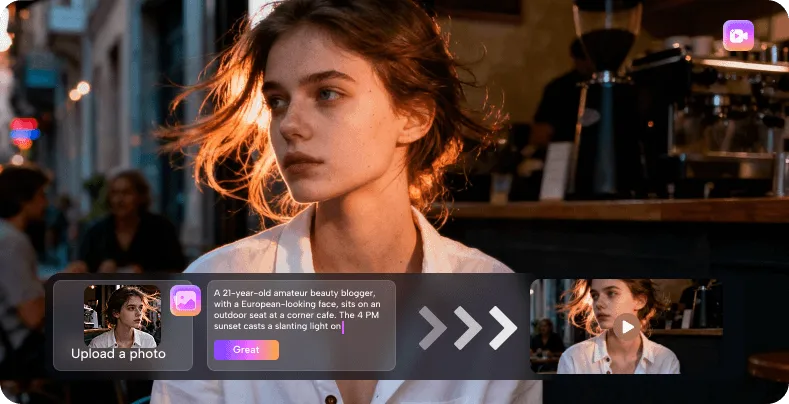
    Begin your ai animation generator task by uploading a starting image and writing a motion prompt. Anyken processes your input with the Wan 2.7 Spicy model, turning a still frame into a moving clip. This ai animation generator workflow keeps you in control: you choose the subject action, set the camera direction, and review the result before refining. Every generation uses account credits, and the exact cost appears in the workbench before you submit. Inspect framing, subject detail, and visual consistency in each output to guide your next creative decision.

    Anyken
    Veo 3
    Kling AI
    PixVerse
    Vidu AI

    Why an AI Animation Generator Transforms Still Images

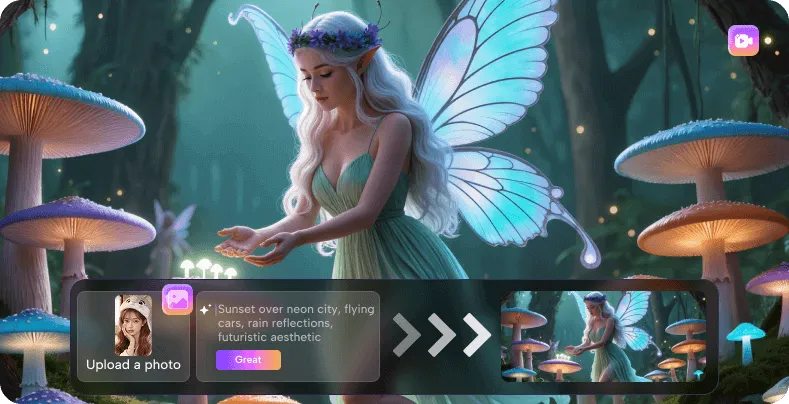
    An ai animation generator bridges the gap between a static composition and a living scene. Instead of building motion frame by frame, you describe a short subject action and a clear camera direction, then let Anyken produce the clip. This ai animation generator approach helps you test pacing, check how light interacts with a moving subject, and decide whether the framing supports your story. Because the Wan 2.7 Spicy model respects your uploaded first frame, you can iterate on subtle expressions, fabric movement, or environmental details without starting over.

    AI Animation Generator First-Frame Control

    01

    AI Animation Generator First-Frame Control

    The ai animation generator workflow in Anyken starts with a first-frame upload that locks the composition, lighting, and subject detail. You are not generating from noise; you are giving the Wan 2.7 Spicy model a concrete visual anchor. This means the output clip inherits the color palette, texture, and spatial relationships of your image. An ai animation generator used this way keeps you close to your original material, making it easier to plan a sequence of shots that share a consistent look. Review the clip for framing drift before committing to a final version.

    try the look in GPT Image
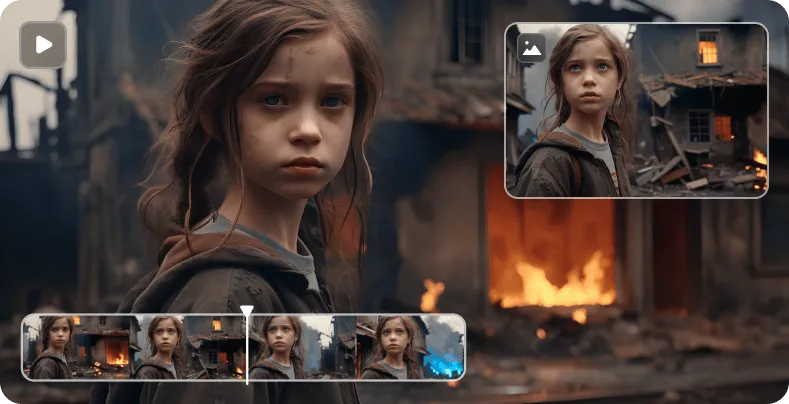

    Creative Directions for Your Clips

    An ai animation generator adapts to many visual styles when you pair a strong starting image with a focused prompt. The example clips on this page show portrait animation, a boat portrait, and an architectural courtyard portrait. These references illustrate how different subjects and settings respond to motion direction, but they are existing site examples, not proof of outputs from the selected model. Use them to study framing choices, then apply what you notice to your own ai animation generator session in Anyken.

    Where to Take Your Next Clip

    After your first successful generation, an ai animation generator becomes a tool for exploring sequence, mood, and visual storytelling. Try varying the camera direction while keeping the subject action constant, or test the same prompt on two different starting images. Anyken supports this comparative workflow through generation history and the workbench controls. This ai animation generator practice builds your intuition for how the Wan 2.7 Spicy model interprets language and imagery together. Each reviewed clip is a data point that sharpens your next creative decision.

    Related action variation 1

    Related action variation 1

    Related action variation 2

    Related action variation 2

    Related action variation 3

    Related action variation 3

    Related action variation 4

    Related action variation 4

    Related action variation 5

    Related action variation 5

    Explore Video Modelsstart from the written sceneanimate the approved frame

    Controls That Shape Your Output

    An ai animation generator responds to the controls you set before submission. In Anyken, the workbench includes first-frame upload, motion prompt, model selection, and output settings. The Wan 2.7 Spicy model interprets your prompt alongside the uploaded image, so small changes in wording or framing can shift the result. This ai animation generator tips section covers the key levers you can adjust: subject description, camera language, and the decision to review before adding complexity. Use these controls to steer each generation toward your intended look.

    01First-frame upload→02Motion prompt field→03Model selector→04Output settings→05Credit cost display→

    AI Animation Generator Questions Answered

    An ai animation generator raises practical questions about input, cost, and creative control. This section addresses common points so you can start a session in Anyken with clear expectations. Each answer focuses on the image-to-video workflow, the role of the Wan 2.7 Spicy model, and the steps that lead to a reviewable clip. Because every generation uses account credits and the cost is shown before submission, you can plan your experiments. Use this ai animation generator FAQ to resolve doubts before you upload your first frame.

    What does an ai animation generator actually produce?

    +−

    An ai animation generator produces a short video clip from a single starting image and a text motion prompt. In Anyken, you upload a first frame, describe the action and camera direction, and the Wan 2.7 Spicy model generates the movement. The output is a moving version of your still image, not a full scene built from scratch. This ai animation generator workflow is designed for quick iteration: you review the clip, check subject detail and framing, then refine the prompt or swap the image. Completed tasks stay in your generation history for preview and download.

    How do I control motion quality?

    +−

    Motion quality depends on three factors: the clarity of your starting image, the precision of your prompt, and the model you select. In Anyken, the Wan 2.7 Spicy model reads your uploaded frame and applies the described action. To improve results, choose an image with good separation between subject and background, and write a prompt that names one specific movement and one camera direction. This ai animation generator approach lets you isolate variables; if a clip drifts, adjust the prompt wording before changing the image. Review each output for visual consistency before moving on.

    Your First Animation Step by Step

    An ai animation generator tutorial starts with three clear actions: upload, prompt, and review. Anyken presents an image-to-video workbench where you set a first frame, choose the Wan 2.7 Spicy model, and describe the motion you want. This ai animation generator guide walks you through each decision so you can produce a clip, study the output, and refine your approach. Completed tasks appear in your generation history for preview and download, giving you a record of every experiment.

    Workbench Overview

    Editorial Prompt Suggestions

    An ai animation generator responds to the words you choose, and small phrasing changes can shift the entire clip. The editorial suggestions below are not customer reviews or endorsements; they are task labels that describe different prompt strategies you can try in Anyken. Use them as starting points for your own experiments. This ai animation generator collection covers subject focus, camera language, and environmental cues, each written to help you isolate one variable at a time.

    When you lead with the subject action, an ai animation generator anchors the motion on the figure. Write a prompt that starts with the person or object and the exact movement you want, such as a slow head turn or a hand gesture. Then add a short camera note. This ai animation generator technique keeps the figure dominant, which is useful when the background is simple or you want the viewer to stay locked on the performance. Test the same action with different camera distances to see how presence changes.

    Subject-First Prompt

    Prompt strategy

    A camera-first prompt tells the ai animation generator to prioritize the shot direction before the subject detail. Start with a dolly, pan, or static description, then name the figure action. This order often produces clips where the spatial movement feels more pronounced. In Anyken, try a slow push-in while the subject holds still, then review whether the framing stays consistent. This ai animation generator approach suits architectural or environmental portraits where the space is as important as the person.

    Camera-First Prompt

    Prompt strategy

    Limiting your prompt to one action helps an ai animation generator produce cleaner motion. Instead of asking for a turn, a blink, and a background shift, choose the most important change and describe only that. The Wan 2.7 Spicy model processes short instructions with fewer artifacts, so you can review a simple clip and then decide whether to add complexity. This ai animation generator discipline is especially helpful when you are learning how the model interprets verbs and timing.

    Single-Action Constraint

    Prompt strategy

    When the setting matters as much as the subject, an ai animation generator can introduce environmental motion alongside the figure. Describe a gentle breeze through foliage, water ripples, or shifting shadows while the subject performs a minimal action. Anyken processes both layers in one pass, so check whether the background movement competes with the figure. This ai animation generator strategy works well for courtyard or outdoor portraits where atmosphere supports the mood.

    Environmental Motion Prompt

    Prompt strategy

    An ai animation generator becomes more predictable when you run comparative tests. Keep the starting image fixed and change only one word in the prompt, then generate two clips and review them side by side. Anyken stores both in your generation history, making comparison straightforward. This ai animation generator method reveals how the Wan 2.7 Spicy model weights different terms, helping you build a personal glossary of effective motion words for future projects.

    Comparative Testing Prompt

    Prompt strategy

    Portrait in an architectural courtyard reference
    Anyken AI

    Continue Your Animation Practice

    An ai animation generator rewards consistent practice and careful observation. Each session in Anyken adds to your generation history, building a personal reference of what works for different subjects and prompts. Return to the workbench with a new starting image or a refined motion description, and apply what you learned from previous clips. This ai animation generator cycle of upload, prompt, review, and refine is the core of the image-to-video workflow. The Wan 2.7 Spicy model is ready for your next frame.

    Get Credits

    Model & settings

    This mode uses Wan 2.7 Spicy.

    Duration

    5s
    2s15s

    Resolution

    Repeat

    1
    2STARTER5LITE8PRO10MAXCurrent
    Advanced settings

    On: the video provider rewrites your prompt before it generates (prompt extend). Off: it uses the prompt in the box as you wrote it. The text in the box stays the same.

    Upload image

    Required

    First frame

    End frameOptional

    Supports JPG, PNG, or WEBP, ≤10 MB, min size 300×300px

    Hints

    Prompt

    Prompt
    0/5000
    Credit cost

    1 videos · 85 credits

    Samples are examples. Results follow the prompt and model and will not match the preview. For a closer match, use Image to Image for a still or Video to Video for a clip.

    1 / 2
    Prompt-Driven Motion Direction

    02

    Prompt-Driven Motion Direction

    Motion direction in this ai animation generator comes from a short text prompt that you write in the workbench. You control the subject action and the camera behavior with plain language, not timelines or keyframes. The Wan 2.7 Spicy model interprets your description and applies it to the uploaded frame. This ai animation generator approach lets you test ideas quickly: describe a slow pan, generate, review, and adjust the wording if the result feels off. Because the cost is shown before submission, you can experiment with different verbs without surprise charges.

    compare it on Nano Banana
    Review and History Workflow

    03

    Review and History Workflow

    Every ai animation generator task you complete in Anyken appears in your generation history, where you can preview and download clips. This record turns your experiments into a searchable library of prompt-image combinations. When a result works well, you can revisit the exact prompt and starting frame that produced it. This ai animation generator history feature supports iterative refinement: compare two versions of the same scene, note which motion direction felt more natural, and apply that learning to your next upload.

    restyle it in Flux
    Portrait painting animation reference

    Portrait painting animation reference

    Portrait Painting in Motion

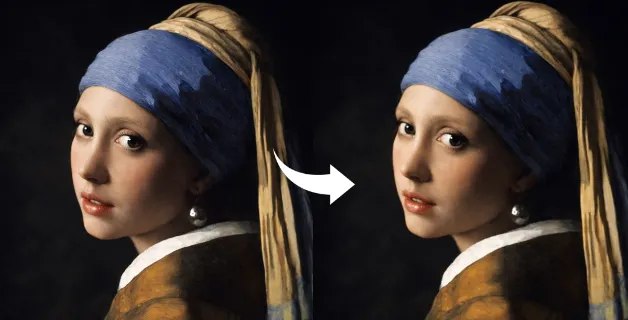
    A painted portrait gains life when an ai animation generator adds a slow head turn and a subtle shift in gaze. Start with a well-lit character study where the eyes and mouth are clearly defined. In Anyken, prompt for a gentle rotation toward the camera while keeping the shoulders still. The Wan 2.7 Spicy model preserves brush texture and skin tones, so you can review how the motion affects the painted surface. This ai animation generator technique suits character introductions, gallery displays, or mood reels where a quiet performance matters more than large action.

    Portrait on a boat at sunset reference

    Portrait on a boat at sunset reference

    Boat Portrait at Sunset

    A subject on a boat at sunset combines figure motion with environmental drift. An ai animation generator can introduce a gentle sway that matches the water, while warm light moves across the face. Upload a frame where the horizon is level and the subject is separated from the background. In your prompt, describe a slow rocking motion and a camera that holds steady at eye level. Anyken processes the scene so you can check whether the light wrap feels natural. This ai animation generator workflow helps you balance character presence with atmospheric change.

    Portrait in an architectural courtyard reference

    Portrait in an architectural courtyard reference

    Architectural Courtyard Portrait

    An architectural courtyard portrait asks an ai animation generator to handle depth, stone textures, and a figure in mid-ground. Prompt for a subtle step forward or a shift in posture while the camera remains static. The Wan 2.7 Spicy model reads the structural lines of arches and columns, so you can evaluate whether the subject stays anchored in the space. This ai animation generator approach is useful when you need to show a character within a location, letting the environment support the mood without distracting from the performance.

    Portrait painting animation reference

    Portrait painting animation reference

    Close-Up Expression Study

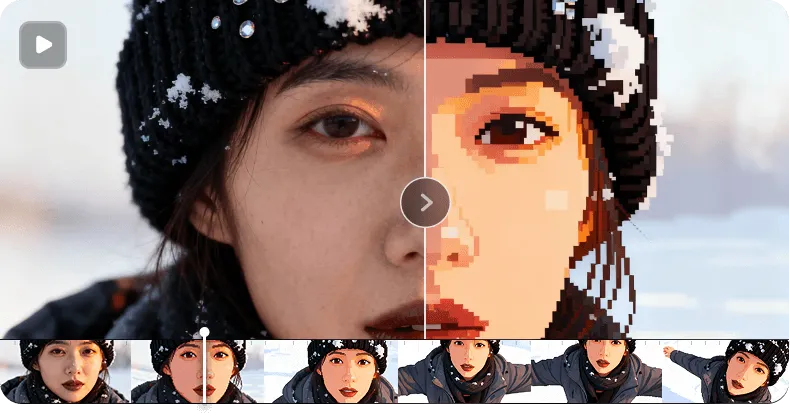
    A tight facial close-up tests how an ai animation generator handles micro-movements: a blink, a slight parting of the lips, or a shift in brow tension. Supply a high-detail starting image with even lighting across the face. In Anyken, keep the motion prompt minimal, focusing on one change at a time. After generation, inspect the clip for skin consistency and eye tracking. This ai animation generator exercise builds your understanding of prompt precision, helping you achieve controlled, repeatable results when you move to more complex scenes.

    View pricing
    06Generation history
    →
    07Preview window→
    08Download control→

    Can I use any image as a starting frame?

    +−

    You can upload common image formats to the Anyken workbench, but the best starting frames share a few qualities: sharp focus on the main subject, even lighting, and a composition that leaves room for motion. The Wan 2.7 Spicy model uses the first frame as its visual anchor, so blurry or cluttered images may produce unpredictable movement. This ai animation generator workflow rewards intentional framing. If a result looks unstable, try a different image where the subject is clearly defined and the background is not competing for attention.

    What does the credit cost cover?

    +−

    Each generation task in Anyken uses account credits, and the exact cost appears in the workbench before you submit. The credit covers the processing of your uploaded image and motion prompt through the selected model. You are not charged for adjusting the prompt or previewing the interface; only confirmed submissions deduct credits. This ai animation generator setup lets you plan a session, compare prompt variations, and decide which experiments are worth running. Completed clips remain accessible in your generation history for download without additional cost per view.

    How do I review and save my clips?

    +−

    After generation, your clip appears in the Anyken workbench for immediate playback. Check subject detail, framing stability, and whether the motion follows your prompt. If you are satisfied, download the clip directly. All completed tasks are stored in your generation history, so you can return to earlier versions and compare them. This ai animation generator review process helps you build a reference set of successful prompts and image choices. Keeping a history of experiments makes it easier to replicate a look or troubleshoot a motion that did not work as expected.

    Which model should I select?

    +−

    The Wan 2.7 Spicy model is the selected video model for this ai animation generator page. It is tuned to interpret a first-frame upload and a short motion prompt, producing clips that respect the original composition. When you open the Anyken workbench, the model selector shows available options; choosing Wan 2.7 Spicy applies the processing style described throughout this guide. If you switch models later, the prompt and image requirements may differ, so review the workbench controls before submitting. Sticking with one model while you learn helps you understand its response patterns.

    What if the motion does not match my prompt?

    +−

    If the generated clip drifts or ignores part of your prompt, start by simplifying the description. Reduce the action to one verb and one camera direction, then resubmit. The Wan 2.7 Spicy model responds to clear, short instructions; long or conflicting prompts can dilute the result. Also check your starting image for sharpness and subject-background separation. This ai animation generator troubleshooting loop, prompt, generate, review, refine, is the fastest way to improve output. Anyken keeps your previous tasks in history, so you can compare versions and spot what changed.

    Creative tools & scenesAI video generators
    • Open text to image
    • Open image to video
    • View pricing
    • ai sex video generator
    • ai video generator
    • image to video porn generator
    • uncensored ai video studio
    • uncensored ai video generator
    • spicy ai pov video generator